
Security
This page covers how admin accounts sign in and stay signed in: two-factor authentication, the list of sessions, and the login protection on Settings → Security. Two-factor and sessions are on every account's own menu; login protection is for the main admin.
Two-factor authentication
Two-factor adds a second step at login: a six-digit code from an authenticator app such as Google Authenticator, Aegis or 1Password. Every admin should turn it on, and a main admin above all.
To turn it on:
- Open your account menu and choose Two-factor authentication.
- Click Set up.
- Scan the QR code with your authenticator app, or type the key it shows.
- Enter the code the app shows and click Turn on.
- Save the ten recovery codes somewhere safe. Each works once, and they are not shown again.
From then on, login asks for a code after the password. A recovery code works in its place when the phone is not at hand. The admin list marks accounts that have two-factor on.
Turning it off, or replacing the recovery codes with New recovery codes, takes a code from the app.
Confirming sensitive actions
With two-factor on, some actions ask for a code again even though you are signed in: changing admin accounts, roles, API tokens, the licence, and the settings of services such as Telegram, email and single sign-on. Enter the code from your app, or a recovery code. One confirmation covers sensitive actions for the next ten minutes.
A lost phone
If both the phone and the recovery codes are gone, a main admin resets the account's password from the server's command line. That also turns two-factor off for the account and ends all its sessions; the admin then sets it up again. See Command line.
Sessions
Sessions, in the account menu, lists every browser or app signed in to your account: when it signed in, when it was last active, and whether it is a remembered login.
- A session ends after 24 hours without use, or 30 days for a login with Keep me signed in for 30 days ticked.
- Sessions survive a panel restart.
- End session signs one out; Sign out everywhere else signs out all but the one you are using.
A main admin can end another admin's sessions from the admin list. See Admins.
Login protection
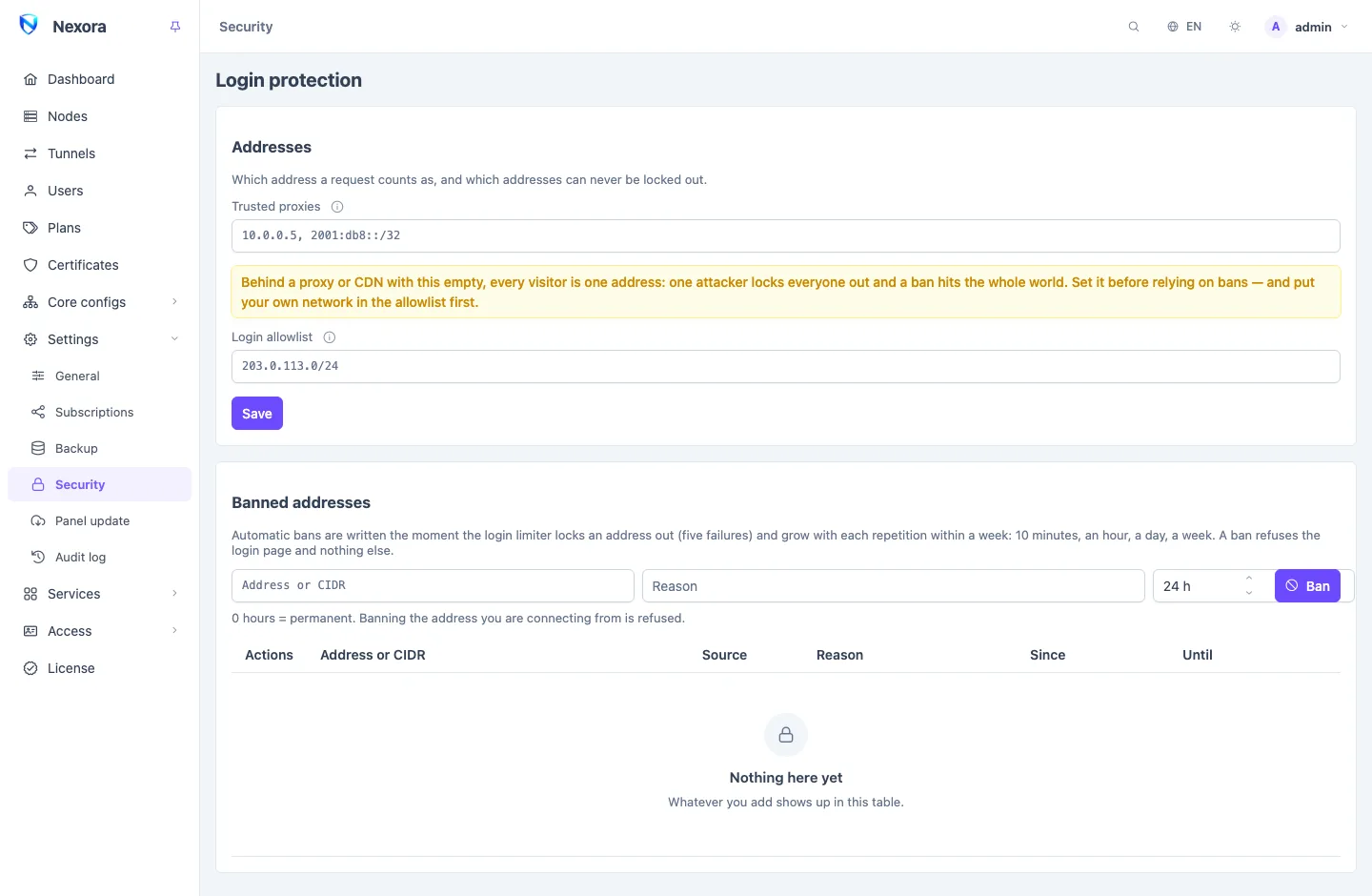
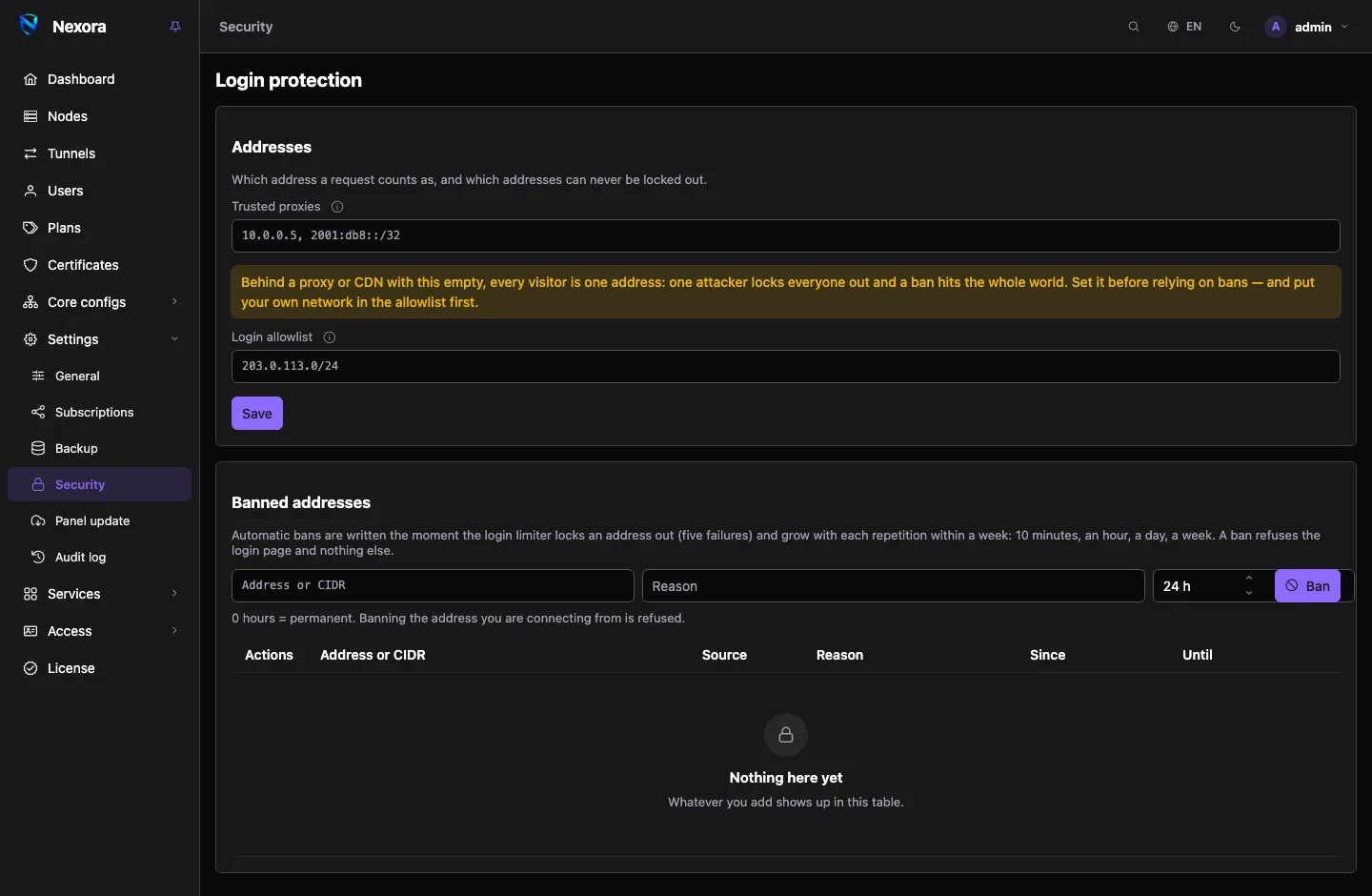
Settings → Security (main admin only) protects the login page from password guessing.
Lockout and bans
Five failed logins from one address lock that address out, and a ban is written for it. Repeat offences within a week ban it for longer each time: ten minutes, an hour, a day, a week. Bans are kept across restarts. A ban refuses the login page and nothing else: subscriptions keep working for that address.
Banned addresses lists every ban with its Source (Automatic or Manual), Reason, Since and Until.
- To ban an address or range yourself, enter it under Address or CIDR, with a Reason and Hours (
0is permanent), and click Ban. The panel refuses to ban the address you are connecting from. - Lift ban removes one.
Trusted proxies
If the panel sits behind a reverse proxy or a CDN, every login seems to come from the proxy's address. Then one attacker locks everyone out, and a ban hits every visitor.
Trusted proxies lists the addresses or CIDRs of your proxy or CDN. A request from one of them counts as coming from the client named in its X-Forwarded-For header. Empty means the direct peer is the client, whatever any header says, which is right when nothing sits in front of the panel.
Set this before you rely on bans, and put your own network in the allowlist first.
Login allowlist
Login allowlist lists addresses or CIDRs that are never locked out or banned: your own network. It is your way back in after a wrong proxy setting.
Locked out
Everything here can be undone from the server's command line, without the panel running: clear the trusted proxies, add your address to the allowlist, reset a forgotten password (which also turns two-factor off), or put back an address setting that made the panel unreachable. See Command line.
Related
- Admins: accounts, the owner, and other admins' sessions.
- Roles: what each account may do.
- General settings: the panel's address and HTTPS.
- Security model: how the panel protects logins, sessions and nodes.