
General settings
Settings → General holds how the panel itself is reached and a few panel-wide choices. Most of what changes the panel's address applies after a restart, and only the main admin can change it.
WARNING
A wrong address, path or listen setting can leave you unable to reach the panel. Every one of them can be put back from the server's command line, without the panel running. See Command line.
The panel's address
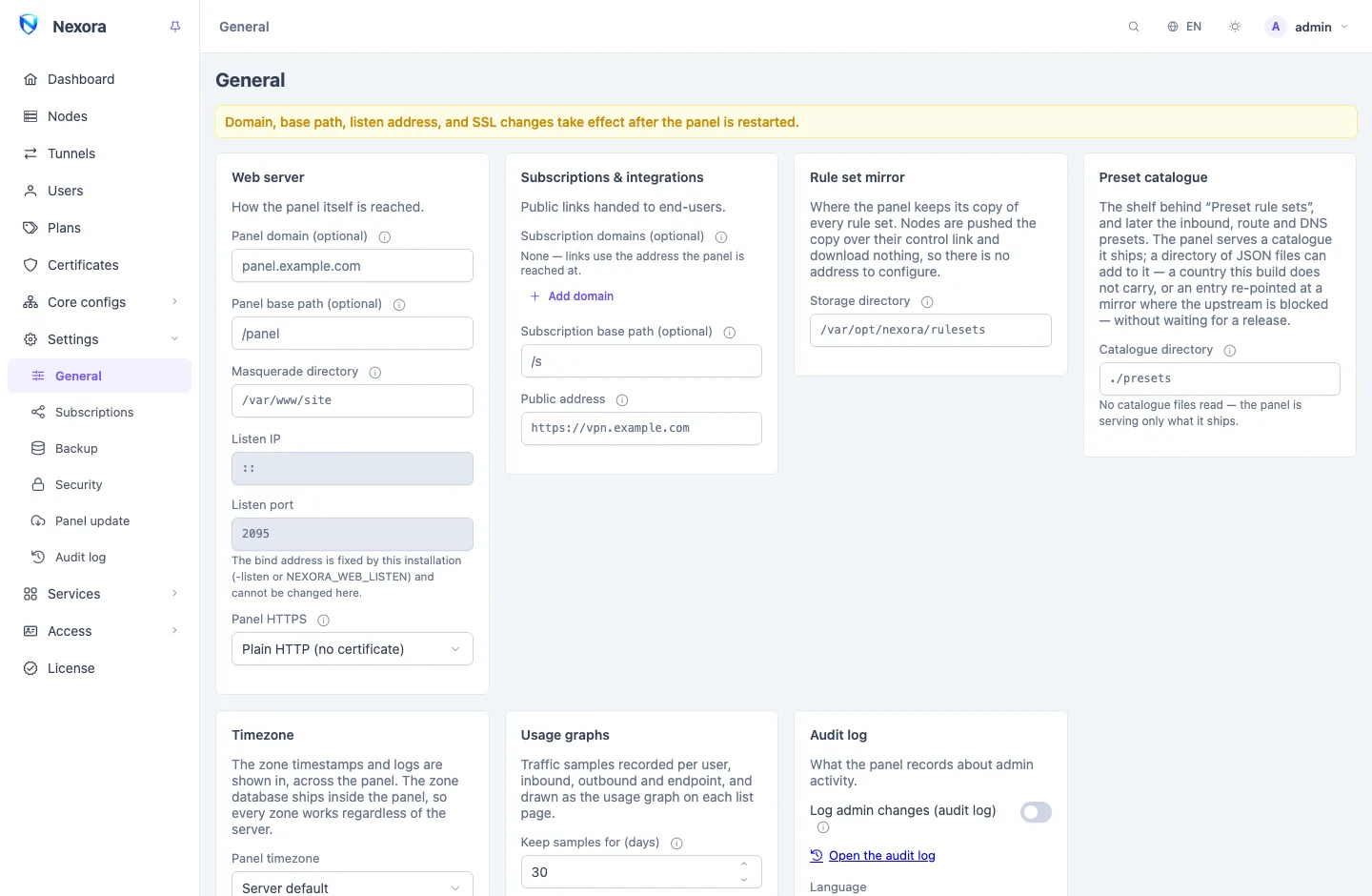
The Web server card decides where the panel answers.
| Setting | What it does |
|---|---|
| Panel domain (optional) | When set, the panel answers only requests for this host name. |
| Panel base path (optional) | Serves the panel under a path, such as /panel. Requests outside it do not reach the login page. |
| Listen IP | The address the panel binds to. Empty binds every address, IPv4 and IPv6. |
| Listen port | The port the panel listens on. |
The setup wizard proposes a random base path. Keep one: it keeps the login page off the panel's bare address, and it is what lets subscription domains and the web site below work.
In Docker, the listen address is fixed by the compose file, because the port mapping lives there too, and the fields say so. Change both in the compose file. See Install the panel.
These changes apply after Restart panel. An address the server refuses to bind falls back to the previous one.
HTTPS for the panel
Panel HTTPS decides how the panel serves its own web interface:
| Choice | Meaning |
|---|---|
| A certificate from the panel | A certificate from the Certificates store, including one issued by ACME. Renewals reach the panel without a restart. |
| Certificate files on disk | SSL certificate file and SSL key file: paths on the panel's server. |
| Plain HTTP (no certificate) | No TLS. Passwords and subscription links travel in clear text. |
The setup wizard starts you on a self-signed certificate from the store. To use a real domain, issue an ACME certificate for it on the Certificates page, pick it here, and restart.
A certificate you manage yourself must also name every subscription domain; see Subscriptions and the subscription page.
A web site for other addresses
Masquerade directory takes an absolute path on the panel's server. Requests on the panel's port that are not for the panel or a subscription are then answered from that directory as an ordinary web site you provide: a landing page, a company site, whatever suits the address.
- It needs a Panel base path. With the panel at the root there is no address left for the site to answer.
- The panel ships no site of its own. Put your own files there, and include a
404.htmlfor paths that have no file. - It does not list directories, serve dotfiles, or follow links pointing out of the directory.
- It never touches the panel's API: an unauthenticated API request still gets the panel's own answer.
- It applies after a restart.
Subscriptions and integrations
This card sets where users' subscription links point: the Subscription domains (optional), the Subscription base path (optional) and the Public address. They are covered on Subscriptions and the subscription page with the rest of the subscription settings.
Rule set mirror and preset catalogue
- Rule set mirror → Storage directory: where the panel keeps its copy of every rule set. An absolute path; empty keeps them beside the database. See Rule sets.
- Preset catalogue → Catalogue directory: where the panel reads your own preset files. The card lists the files in effect. See Routing and DNS.
Timezone
Panel timezone is the zone every timestamp in the panel, its logs, and the subscription page are shown in, and where a day starts on the usage graphs. The zone database ships inside the panel, so every zone works whatever the server is set to. Server default follows the server.
Usage graphs and audit log
- Usage graphs: Keep samples for (days) and Sample interval (seconds) decide how much traffic history is kept for the graphs on each list page.
0days turns the graphs off and clears what is stored. - Audit log: Log admin changes (audit log) records every create, update and delete with the account that made it, kept for Keep records for (days). See Audit log.
The Language selector here sets the panel's language for your browser.
Login protection
Trusted proxies, the login allowlist and address bans are on Settings → Security, with two-factor authentication and sessions. See Security. If the panel sits behind a reverse proxy or a CDN, set Trusted proxies there before relying on login bans.
Restarting the panel
Restart panel restarts the panel so address, path, listen and HTTPS changes take effect. The page reloads when the panel is back. Users' connections are not affected: nodes keep serving through a panel restart.
Related
- Subscriptions and the subscription page: subscription domains, the subscription page and link names.
- Certificates: certificates for the panel.
- Security: login protection.
- Command line: changing these settings from the server.