
Single sign-on
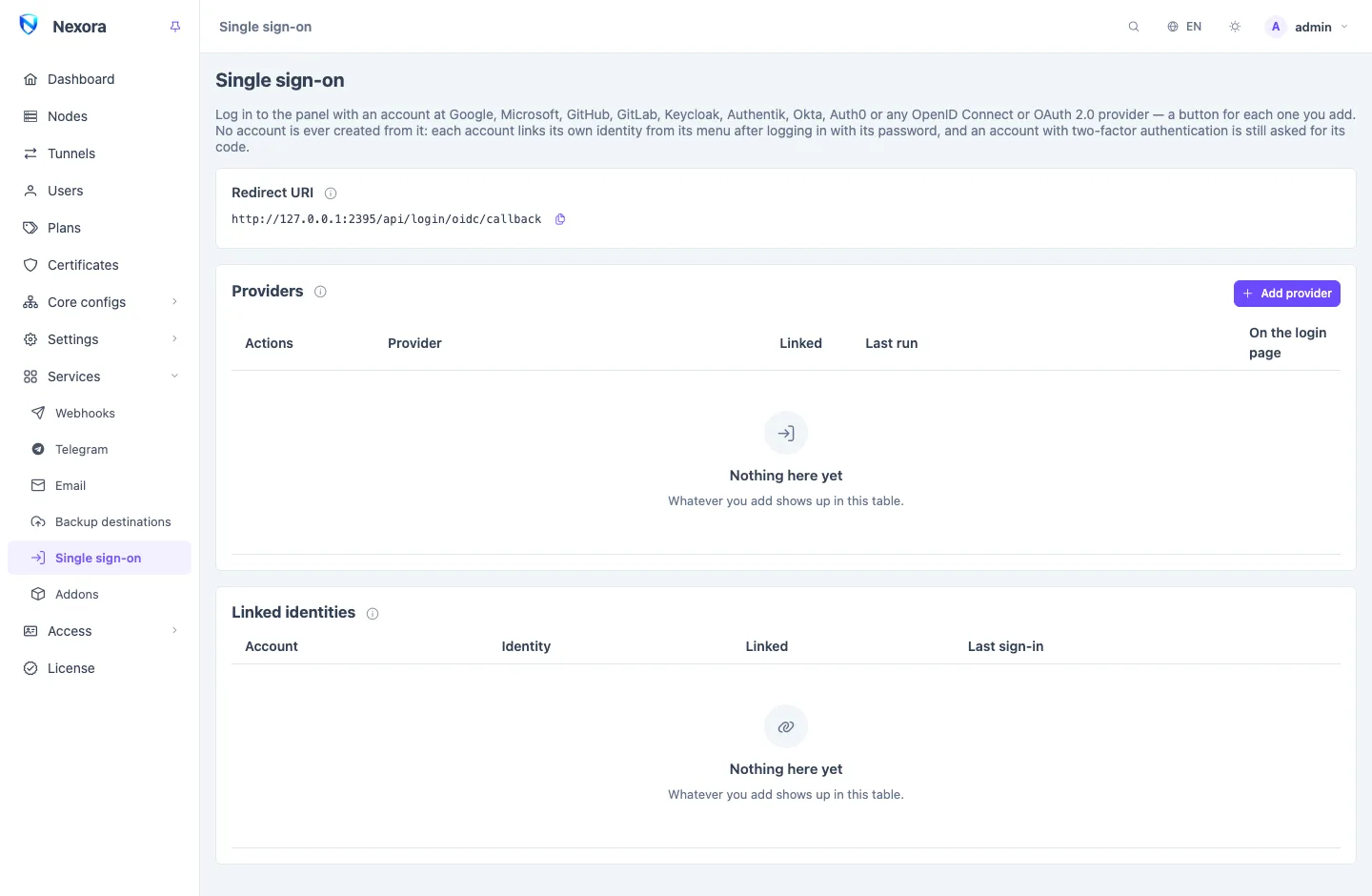
Single sign-on puts a Sign in with … button on the panel's login page for each provider you add: Google, Microsoft, GitHub, GitLab, Keycloak, Authentik, Okta, Auth0, any OpenID Connect provider, or any OAuth 2.0 provider. Your operators then log in with an account they already have. The page is under Services → Single sign-on and is set up by a main admin.
Two rules
- No account is created from it. An account at the provider means nothing to the panel until a panel account links it. Someone who signs in at the provider with no link here is refused.
- Two-factor authentication still applies. An account with two-factor authentication is asked for its code after the provider, as after a password.
The redirect URI
The page shows one Redirect URI, ending in /api/login/oidc/callback. Register exactly this address at every provider as the client's redirect (or callback) URI. One address serves every provider.
It is built from the address the page is open on, so open the panel at the address your operators use before you copy it.
If the panel is behind a reverse proxy, the proxy must pass the original Host header through (in nginx, proxy_set_header Host $http_host;), or be listed under Trusted proxies on the Security page so its X-Forwarded-Host counts. Otherwise the sign-in is refused on the way back.
Adding a provider
Add provider and pick the provider at the top.
The form asks for exactly what that provider needs, with where to create the client written above the fields. Create the client at the provider with the redirect URI above, then fill in:
Provider You fill in Google Client ID, Client secret Microsoft Tenant (empty = common, any Microsoft account), Client ID, Client secretGitHub Client ID, Client secret GitLab Address (empty = gitlab.com), Client ID, Client secret Keycloak Address, Realm, Client ID, Client secret Authentik Address, Application slug, Client ID, Client secret Okta Domain, Authorization server (empty = default), Client ID, Client secretAuth0 Domain, Client ID, Client secret OpenID Connect (other) Issuer, Client ID, Client secret, Scopes OAuth 2.0 (other) Authorization URL, Token URL, User info URL, Client ID, Client secret, ID field, Name field Button name changes what the button says after "Sign in with"; empty uses the provider's name.
Save, then choose Test on the provider's row to check that the provider answers.
OpenID Connect (other) covers any provider found by its issuer address: PocketID, Authelia, Zitadel, Kanidm, Dex, Casdoor, Logto and others. Its /.well-known/openid-configuration must answer.
OAuth 2.0 (other) is for a provider that speaks OAuth 2.0 but not OpenID Connect. Give its three addresses and name the fields of its user answer that hold the account's id (one that never changes) and a name to tell links apart.
An address must be https, or http only on the panel's own server.
The provider list
Each provider shows how many accounts are Linked through it, its Last run with the last error if any, and On the login page, which takes the button off without deleting the provider.
Deleting a provider removes the identities linked through it. So does an edit that changes who the provider says people are: its Client ID, its issuer or address, or, for OAuth 2.0 (other), any of its three addresses or the ID field. The dialog warns first; each account then links again with its password.
Linking an account
Each account links its own identity:
- Log in with the account's password.
- Open Single sign-on on the account menu.
- Type the current password again.
- Link with the provider, and sign in there.
From then on the button logs that account in. Its password keeps working beside it. An identity can be linked to one account only; one already linked elsewhere is refused.
The main admin sees every link under Linked identities: the account, the identity, when it was linked and its last sign-in, with Unlink on each.
When access must be withdrawn
Unlinking an identity, deleting the account, or a main admin resetting its password on the Admins page removes the account's links. The recovery command nexora-panel admin reset-password removes them too, so the console stays the one way back in (see Command line).