
The addon directory
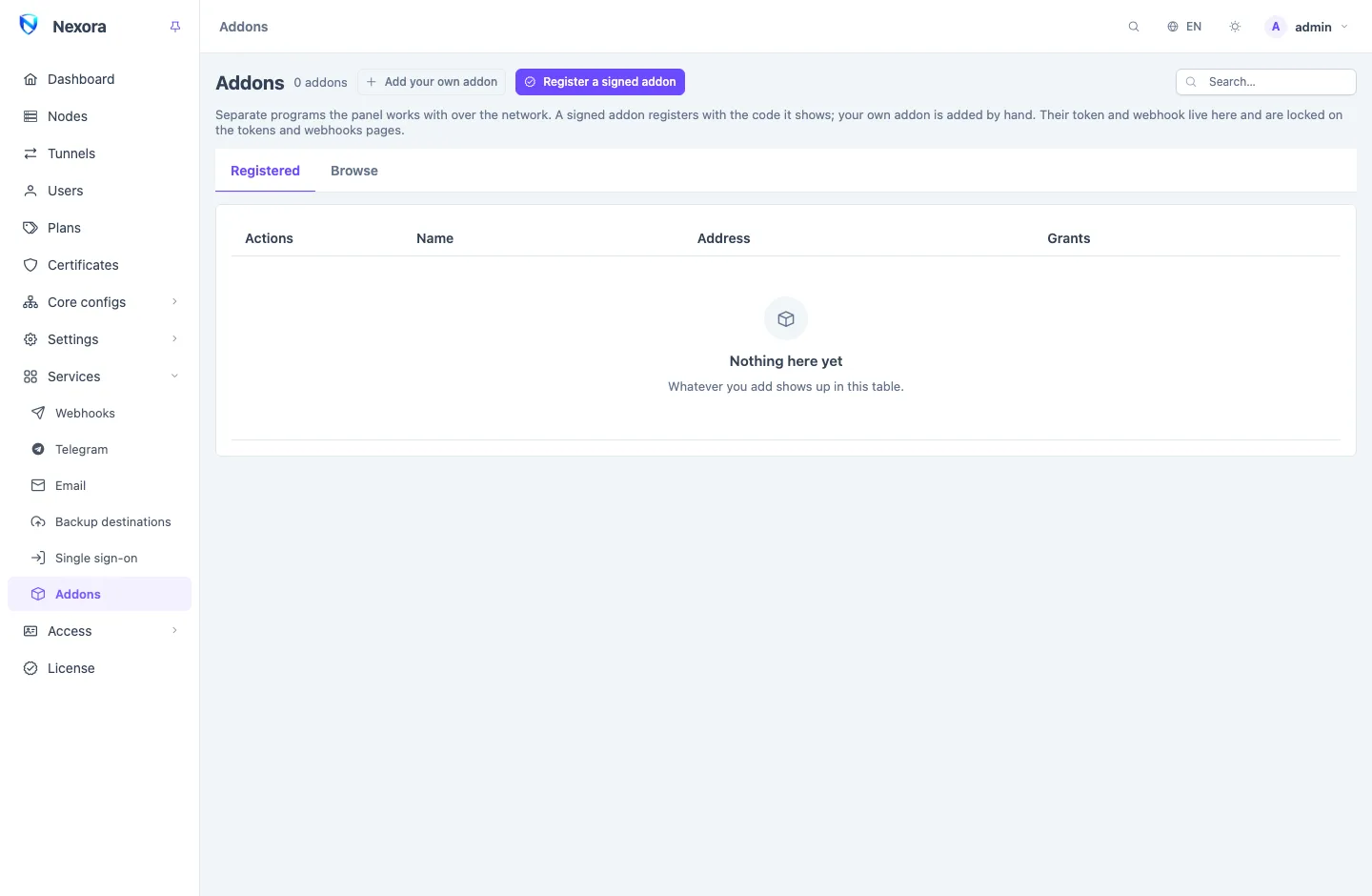
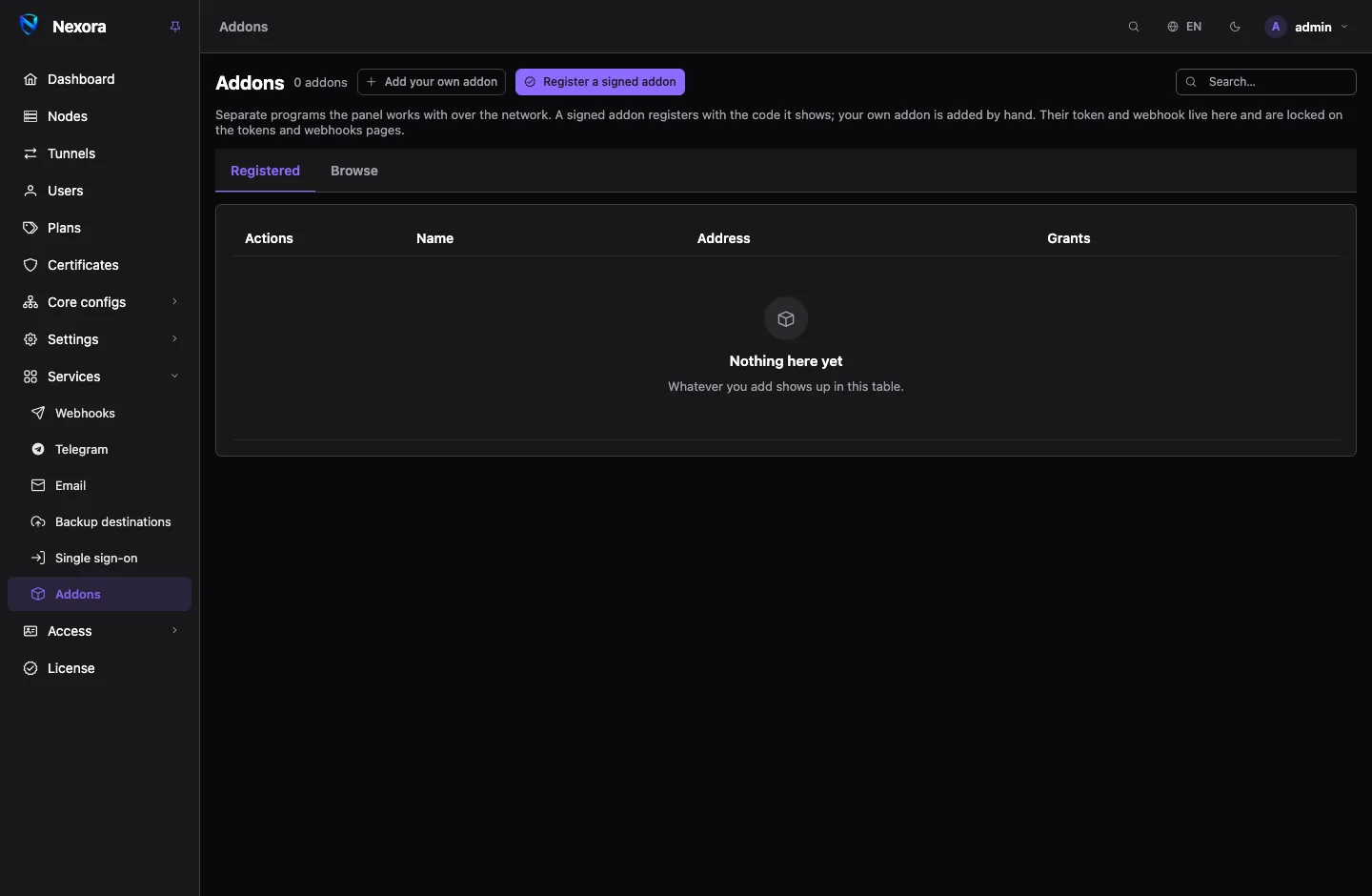
The addon directory at addons.nexora-panel.org lists the addons you can install. The panel reads it, shows it under Addons → Browse, installs an addon on a server of yours and registers it once you approve what it asks for. This page covers every way to install, then updates and removal.
What the directory lists
Each listing shows the addon's name, publisher, description, licence, whether it is Paid or Free, its latest release, how it can be installed (As a container (Docker compose), As a service, built for a list of platforms) and how many questions its install asks. It also carries a trust tier:
| Tier | What it means |
|---|---|
| Official | Made by Nexora; its manifest is signed by Nexora. |
| Verified | From another developer, reviewed by Nexora; its manifest is signed with the developer's key, which the directory vouches for. |
| Unofficial | Listed after a light check only. Nexora has not reviewed it. |
An addon that needs a newer panel shows Needs panel with the version. Update the panel first (Update).
Reading the directory
The panel reads the directory once a day together with its release check, and whenever you press Read now on the Browse tab. The line above the cards says where it read from and when. With the daily release check switched off (Settings → Update), the directory is read only when you ask.
The list the directory publishes is signed, and the panel refuses a list the directory did not sign. If the last read failed, the page says so and keeps showing the last list that passed.
A mirror
Where addons.nexora-panel.org cannot be reached from your panel, point it at a copy of the directory's index.json with Change source. A mirror can serve the list but cannot change it, because the signature check still applies. Leave the field empty to go back to addons.nexora-panel.org.
Install from the panel
Pick an addon on Browse and press Install. The form is built from the addon's own manifest.
- Who runs it: the panel on its own server, the panel over SSH, or a command you run yourself. The choices are explained below.
- How: As a service (its binary under systemd, no Docker needed), With Docker (its image, through the compose file its install script writes) or Compose file (a compose file and an
.envfor a host with Docker). - Where the panel will reach it: the addon's address once it runs, as the panel sees it. Plain
http://is accepted only on a private address. While the addon's HTTPS is on, the form proposes its public address. - Where it reaches the panel: the panel's address as the addon's server sees it.
- Its questions: the port, the database, the first admin's password and whatever else the addon declares. A question that depends on another appears only when it applies. An admin password takes 10 characters to 72 bytes (about 36 Persian or Russian letters, or 24 Chinese).
The form often asks for an admin path too. The panel draws a random one, so the addon's admin is not at a guessable address; empty puts it at the root.
On the panel's own server
When the panel runs directly on a Linux server (not in Docker), Who runs it offers The panel, on this server first. The panel runs the addon's install script itself, as root, with no SSH and nothing to type. Where the panel will reach it fills in as http://127.0.0.1:<port>, or as the public address while the addon's HTTPS is on.
A panel in Docker does not offer this, because it would install into its own container; it says so. Install by command or over SSH there.
Over SSH
For an official or verified addon, The panel, over SSH installs it on another server the same way the panel installs a Node:
- Host, SSH port, User (root, or a user with sudo), and a Password or Private key. They are used for this connection only and never stored. The server's host key is remembered on first contact.
- Release files: The panel brings them downloads the release, checks it against the checksums its developer signed and uploads it, so the server needs no access to GitHub. The host downloads them lets the install script fetch the release on the server and check it against the signed checksum the panel hands it.
- Authorise the panel's key on this host lets later updates and removal run without a password.
Install first checks the server (its architecture, systemd or Docker) and stops with the reason before writing anything if the addon cannot run there. Then it runs the install script and shows its log live.
By a command you run
I run the command works for every tier. Make the command checks your answers, makes a one-time claim code and gives you one command to run as root on the addon's server.
The command may carry a secret
When one of your answers is a secret, the command contains it and is shown only this once. Copy it before closing. Run it from a script file or with shell history off, so the secret is not kept in your history.
Approve and register
Whichever way it was installed, the panel then waits for the addon to answer at its address. When it does, the panel shows what the addon asks for: each permission of its token with the reason, its request rate, and each event. Approve and register registers it with the claim code the panel already holds; there is nothing to copy back.
You can close the form while you wait. The install stays under Waiting for an addon to answer with Continue, for a week.
An addon whose manifest carries no signature this panel trusts ends at Add your own addon, filled in. You create its token and webhook there yourself; see Addons page.
HTTPS for the addon
Most addons ask how to serve HTTPS. The answers the addons Nexora publishes offer:
| Answer | What it does |
|---|---|
panel | A certificate from the panel's own store (Certificates), which the panel issues and renews and the addon fetches every few minutes. Any port works, so several addons share a server with the panel. The default in the panel's form. |
acme | The addon gets its own certificate for its domain, answering the authority on its port, which must be 443. |
acme-http | The same on any port, the authority asking on port 80. |
self-signed | The addon makes its own, for an address by IP. The approval screen shows its SHA-256 fingerprint: compare it with the one on the addon's Set-up page. Approving trusts exactly that certificate. |
off | Plain HTTP, for a reverse proxy of your own. |
With HTTPS on, the addon serves it on its install port alone, and the public address must name that port (443 when it names none), for example https://shop.example.com:8443.
For an addon on another server, only certificates issued by dns-01, self-signed or uploaded ones are offered, and never the panel's own HTTPS certificate. Change the certificate later with Certificate on the addon's row. A self-signed addon renews its certificate about once a year; trust the new one there with Trust this certificate after comparing its fingerprint. More on certificates in Certificates.
Updates
When the directory has a newer version of a registered addon, its row on Registered shows it (for example 0.2.0 in the directory) and the Addons menu gets a dot.
- Installed on this server or over SSH: Update on its host runs the install script again. Settings and data are kept, and the panel reads the new manifest at once.
- Installed by command: run its install script again on its server with no arguments,
sh nexora-addon-install.sh. It installs the latest release the same way and keeps the answers and the data. For a Compose file install, setNEXORA_ADDON_VERSIONin its.envto the new version, then rundocker compose pull && docker compose up -d.
A new version that asks for more permissions or events is installed, but waits for your approval (Review the update) before it gets them; see Addons page.
Removing an addon
Remove from its host (for an addon installed on this server or over SSH) runs its install script with --uninstall. Tick Delete its data too to remove its data directory as well.
DANGER
Delete its data too cannot be undone. Take the addon's own backup first if you may want it back.
The addon stays registered until you also press Remove on its row. Removing it there tells the addon first, then deletes its token and webhook.
By hand, on the addon's server:
sh nexora-addon-install.sh --uninstall           # keeps its data
sh nexora-addon-install.sh --uninstall --purge   # deletes the data too
An addon removed with its data kept and installed again from the panel (a new install, a new claim code) registers like any other. It drops the registration it kept, sets its admin's password to the new install's answer, turns that admin's second factor off and signs it out everywhere. An update or a restart keeps both.