
Backup and restore
The panel backs up its own database: every admin, user, node, template, certificate and setting. One archive is enough to rebuild the panel on another server, on either database. This page covers Settings → Backup, which only the main admin can open.
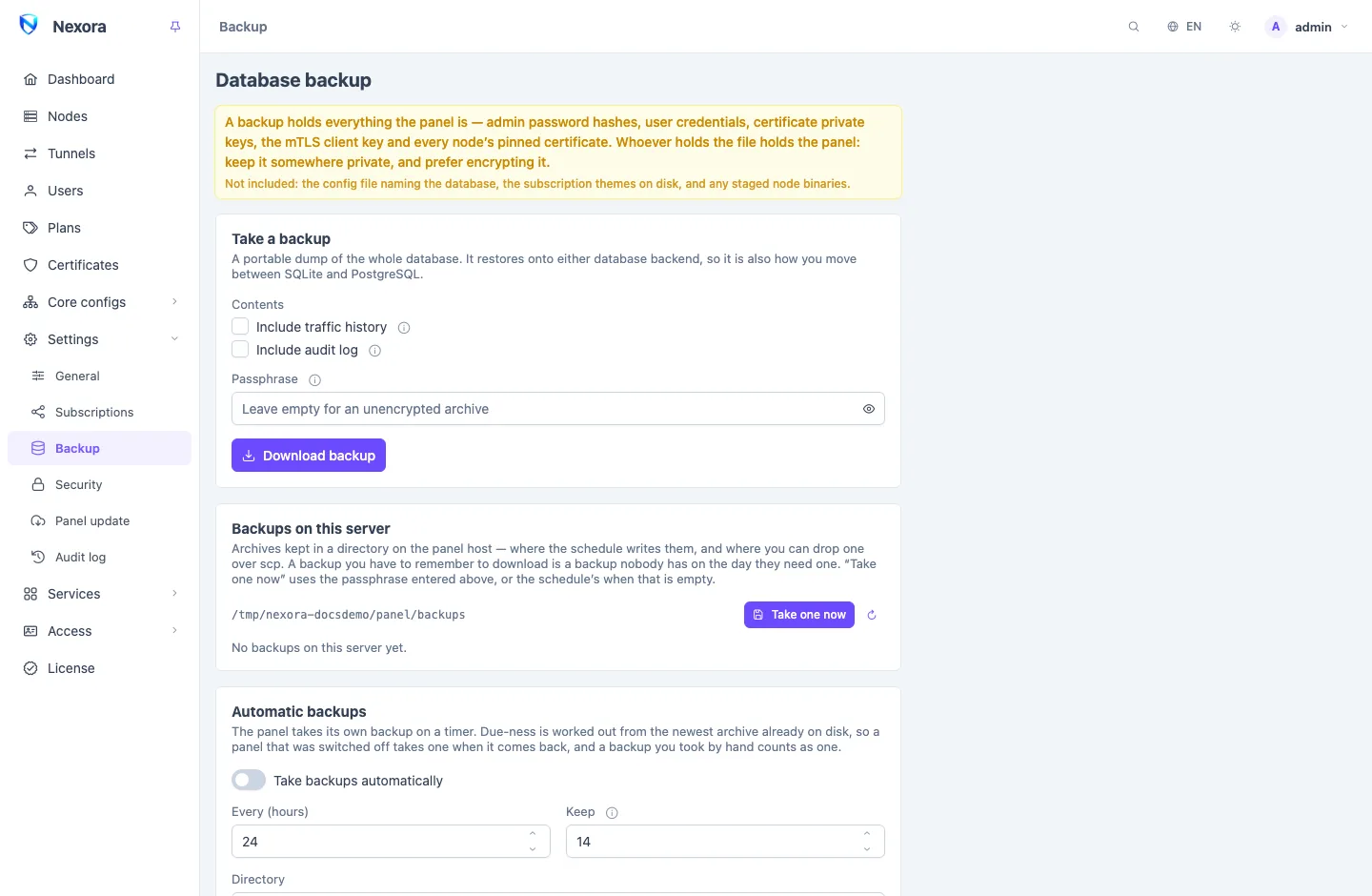
WARNING
An archive holds everything the panel is: password hashes, users' credentials, certificate keys, and the keys nodes trust the panel by. Whoever has the file has the panel. Keep archives private, and prefer encrypting them.
What an archive holds
An archive is a portable dump of every table, compressed. It is not a copy of the database file, which is why one taken on SQLite restores onto PostgreSQL and back.
You can leave out two large parts when you take one:
- Include traffic history: the usage graphs and hourly totals, usually most of the database. Leaving it out loses no live state: what a user has spent is kept on the user.
- Include audit log: the record of every admin action.
Three things are never in an archive: the config file that names the database, the subscription themes on disk, and the staged node binaries. The mirrored rule-set files are left out too; the panel downloads them again. Nodes keep nothing worth backing up, so they need no backup of their own.
Taking a backup
- Download backup takes one and sends it straight to your browser. Nothing is kept on the server.
- Take one now, under Backups on this server, writes one into the backup directory.
The list of Backups on this server shows each archive's date, size and contents, with buttons to download, check or delete it. Archives marked Pre-restore are the safety copies a restore takes (below).
The backup directory is /var/opt/nexora/backups/ on a standard install. In Docker it is ./backups next to the compose file, so archives survive the container. Copy it somewhere else as well: a backup that lives only on the machine it protects is not a backup.
Services → Backup destinations sends every archive, scheduled or taken by hand, to S3-compatible storage, an SFTP server or a Telegram chat as well. See Backup destinations.
Encryption
Passphrase encrypts an archive. There is no recovery: a lost passphrase means a lost backup, so keep it where you keep the archives' copies, not on the panel.
- For a download, type the passphrase twice before Download backup. Leave it empty for an unencrypted archive.
- Take one now uses the passphrase typed above, or the schedule's when that is empty.
- The schedule has its own passphrase. Once set it is never shown again; leaving the field empty keeps it. Stop encrypting removes it.
Automatic backups
Under Automatic backups:
| Setting | |
|---|---|
| Take backups automatically | Off by default. |
| Every (hours) | How often. |
| Keep | How many archives to keep. 0 keeps everything. |
| Directory | Where they go, an absolute path. |
| Contents | Whether to include traffic history and the audit log. |
| Passphrase | Encrypts scheduled archives. |
When a backup is due is worked out from the newest archive already in the directory. A panel that was switched off takes one when it comes back, and a backup you took by hand counts. Retention deletes the oldest archives beyond Keep, and never deletes pre-restore snapshots.
The same settings can be made from the command line; see Command line.
Checking an archive
Drop a file on Check a backup file, or press the check button on a stored one. The panel reads it end to end and writes nothing. An encrypted archive asks for its passphrase first (Unlock).
It reports when and by which panel version the archive was taken, the source panel, the database type, the size, and the rows per table, checked against the archive's own manifest. That catches a half-finished download before you rely on it. Under Worth knowing it warns about anything that matters for a restore, for example:
- the archive holds no admin accounts;
- it was taken on another machine, so its licence will not be valid here;
- it was written by a newer panel version;
- traffic history or the audit log was left out;
- it holds a different panel client certificate, so every node would refuse this panel until reinstalled;
- some nodes' pinned certificates differ, so they must be re-pinned.
Restoring
After a check, Restore from this backup replaces every row in the database with the archive and restarts the panel.
- Check the archive and read the warnings.
- Choose what to Keep from this installation:
- Keep this panel's address settings: domain, base path, listen address and HTTPS. On by default, so an archive from another machine does not bring the panel back on an address this server cannot reach.
- Keep this panel's licence: on by default. A licence belongs to one machine, so one carried in from another host would not be valid here.
- Type the confirmation phrase and click Replace the database and restart.
- Sign in again once the panel is back. If the archive came from another panel, use that panel's accounts.
Before anything changes, the panel takes a full Pre-restore snapshot of the current database into the backup directory. If the restore was a mistake, restore that snapshot. The restore itself is all or nothing: if it fails, the panel stays exactly as it was.
If the panel will not start at all, restore from the server's command line instead; see Command line.
Moving to another server
- On the old panel, take a backup and download it.
- Install the panel on the new server and open the setup link. See Install the panel.
- On the setup wizard's first screen, follow Moving from another server? Restore a backup instead of filling in the form, and choose Restore and restart.
- Sign in with the old panel's account.
Restoring during setup takes the archive's own settings, address included, because an empty install has none worth keeping. The address the new panel was started on still wins if the installer fixed it, and the panel falls back to it if the restored one cannot be used here.
The licence comes along but stays tied to the old machine. Move it from the License page with Move the licence to this machine; see Licence.
Point your DNS at the new server. Nodes need nothing: they trust the panel's client certificate, which the archive carries.
Copy the subscription themes and any presets files across by hand if you use them.
Moving between SQLite and PostgreSQL
An archive restores onto either database, so a backup is also how you switch:
- Take a backup on the old panel and download it.
- Install the panel on the new database, for example with the installer's
--postgresoption, or point the existing one's config file at the new database. - Restore the archive: from the setup wizard on a fresh panel, or from Settings → Backup on one that is already set up.
See Install the panel for choosing a database.
Related
- Backup destinations: off-site copies of every archive.
- Command line: backup and restore from the command line.
- Licence: moving the licence after a move.