
Updating from the panel
Settings → Panel update shows which version you run against the newest release, updates the panel itself on a standard install, and keeps the node binaries the panel hands to your servers up to date. Only the main admin can open it. For updating from the command line, and the order to update in, see Update.
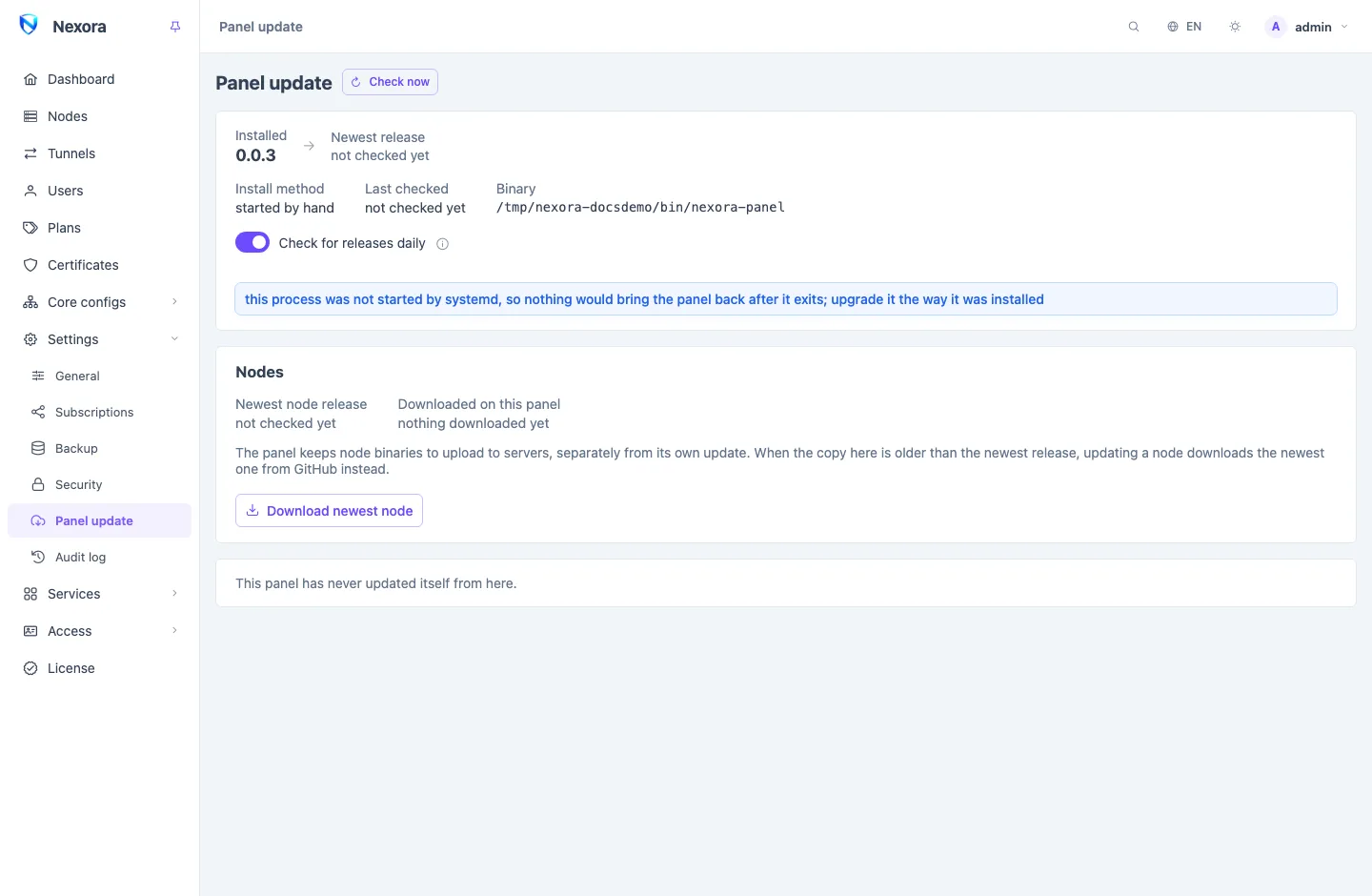
Release check
The page shows:
- Installed and Newest release, with Update available or Up to date, and a link to the Release notes;
- the Install method: a systemd service, a container, or started by hand;
- Last checked, and Check now to look again.
The panel checks once a day and shows a banner when a release is out. The daily check is one request to the public panel repository on GitHub, which tells it your server's address. Switch it off with Check for releases daily, or from the command line (see Command line). Check now and the update button still work with it off.
Updating the panel
On a systemd install, Update now (or Update to version) does the whole upgrade:
- Taking a backup: a database backup into your backup directory.
- Downloading the release.
- Verifying it against the checksum published with it, and running it once to be sure it starts on this machine.
- Installing: swapping it in, keeping the previous binary beside it.
- Restarting on the new version.
You stay signed in. The panel is unreachable for a few seconds and the page says when it is back. Nodes keep serving through the restart, so users lose nothing.
If the new version does not start
If the new build does not come up, the panel puts the previous binary back by itself within about ten seconds, and the page shows Rolled back.
The database is not rolled back: updates only ever move it forward. If something looks wrong after an update, the backup taken in the first step is the way back. The page names it; restore it under Settings → Backup (see Backup and restore).
Docker installs
A panel in a container cannot replace its own image, and the page says so rather than trying. Update it from the directory of your compose file:
docker compose pull && docker compose up -dNode releases
The Nodes part of the page shows the Newest node release and the Nodes behind it.
The panel keeps a copy of the node binaries it uploads to your servers when it installs or updates a node. Download newest node fetches the newest release into that copy. Downloaded on this panel shows what is there and whether it is current or older. When the copy is older than the newest release, updating a node fetches the newest one from GitHub instead.
Update all nodes updates every node that is behind, one after another, over SSH. A node the panel has no SSH key for is skipped; update it from its own install dialog. See Nodes.
TIP
Update the panel before its nodes. A newer node paired with an older panel can miss the panel's request to cut off an account that has expired or run out of traffic, until something else updates that node.
Related
- Update: updating the panel and nodes, including from the command line.
- Backup and restore: the backup taken before every update.
- Nodes: updating a single node.