
Certificates
The panel keeps a store of TLS certificates and puts them where they are needed: on inbounds and endpoints, on the panel's own web interface, and on addons. Certificates it issued renew by themselves, and every node using one gets the new one without your help.
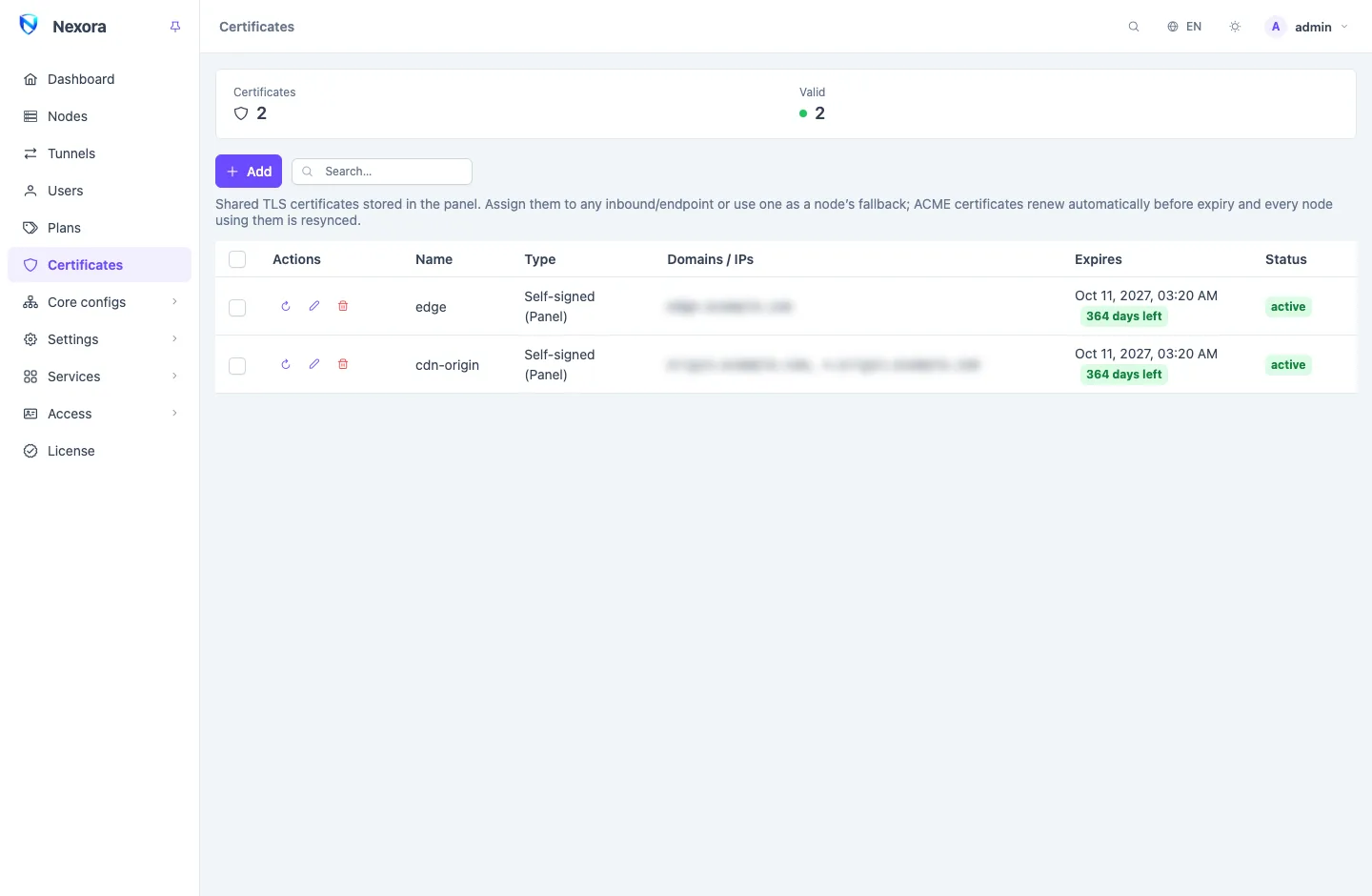
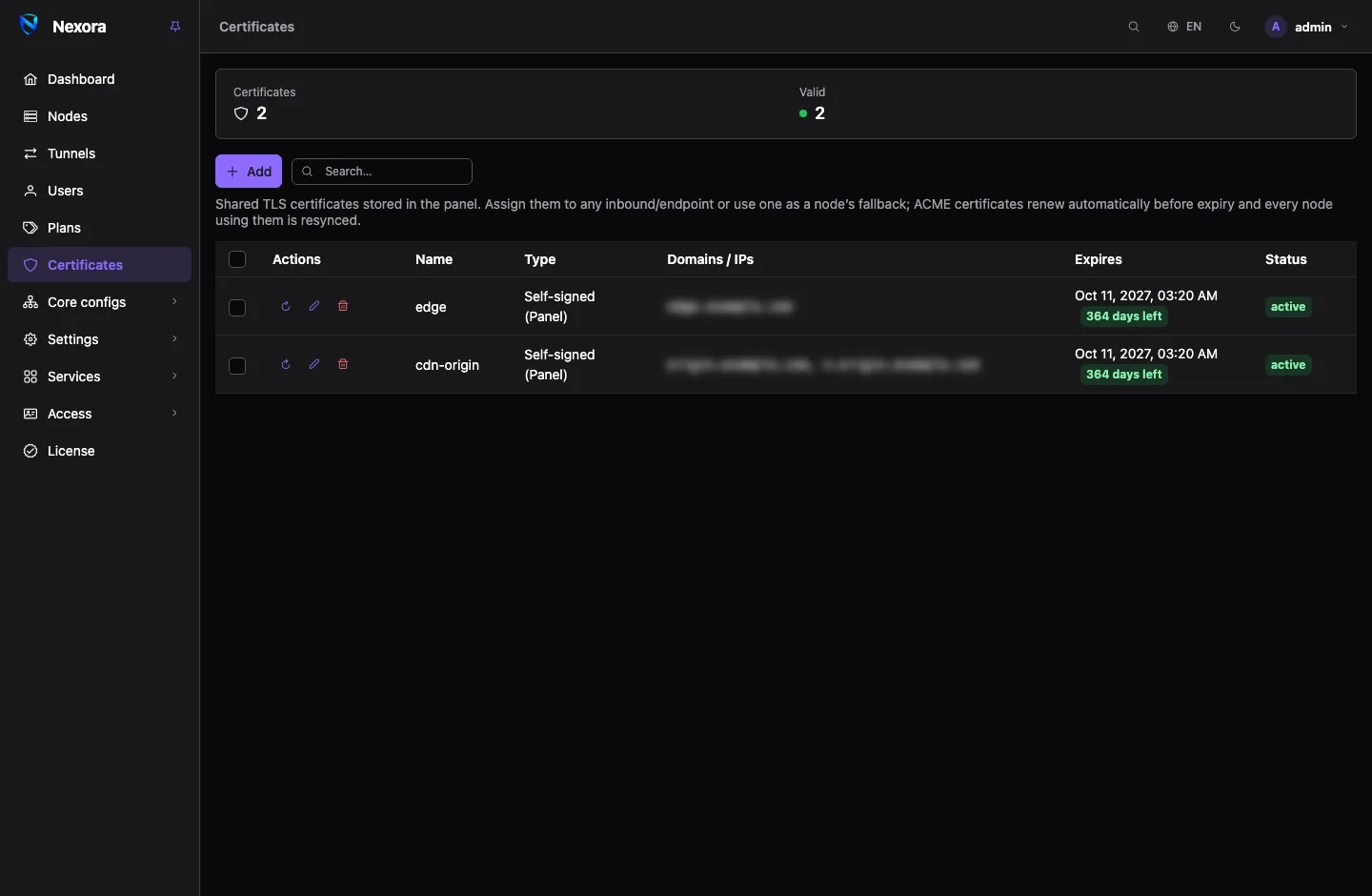
The store is under Certificates in the sidebar. The summary strip counts certificates that are Valid, Expiring soon, Expired, Pending or in Error.
Kinds of certificate
| Type | Use it when |
|---|---|
| Self-signed (Panel) | You have no domain, or apps will trust the certificate by its pin. Made at once by the panel, no outside service involved. |
| ACME — obtained by the panel | You have a domain and want a certificate a public authority vouches for, such as Let's Encrypt. The panel answers the challenge. |
| ACME — obtained by a node | The same, with one of your nodes answering the challenge. Use it when the domain points at a node rather than the panel. |
| Custom (paste PEM) | You already have a certificate from elsewhere. Paste the certificate and its private key. |
A REALITY inbound needs no certificate at all. See VLESS with REALITY.
Adding a certificate
- Open Certificates and click Add.
- Give it a Name, such as
wildcard-example. - Pick the Type.
- Fill in Domains / IPs, comma-separated:
vpn.example.com, 203.0.113.10. A custom certificate takes these from the pasted file. - For ACME, fill in the challenge fields (below).
- Click Issue certificate.
ACME challenges
An ACME authority checks that you control the name before it issues. Pick one of three ways under ACME challenge:
| Challenge | Needs |
|---|---|
| DNS-01 | The API token of your DNS provider. Works for any domain, including wildcards, from anywhere. |
| HTTP-01 | The domain pointing at whoever answers, with port 80 free there. |
| TLS-ALPN-01 | The domain pointing at whoever answers, with port 443 free there. |
For DNS-01, pick the DNS provider (Cloudflare, Alibaba Cloud DNS or acme-dns) and paste its DNS API token. The token is kept for renewals and never shown again; leave the box empty when editing to keep it.
Who answers depends on the type:
- Obtained by the panel: the panel's server answers. HTTP-01 and TLS-ALPN-01 work only for a domain pointing at the panel, and the panel cannot answer them for an IP address.
- Obtained by a node: pick the node under Obtained by. DNS-01 works from any node; HTTP-01 and TLS-ALPN-01 need the domain pointing at that node.
The issued certificate is stored in the panel only. Nodes receive it inside their configuration.
Renewal
The panel checks its certificates every six hours. A certificate issued by the panel or by ACME is renewed in the last 30 days before it expires (a short-lived certificate, in the last third of its life). Every node using it is sent the new one, and the panel's own web server picks it up without a restart.
If a renewal fails, the old certificate keeps serving, the row shows why, and the panel tries again on the next check. Renew on a row renews at once.
A Custom certificate is never renewed. Replace it before it expires: edit it and paste the new pair.
Using a certificate
On inbounds and endpoints
On an inbound's TLS tab, or an OpenVPN or OpenConnect endpoint's Protocol tab, pick the certificate by name under TLS certificate. Every node serving that inbound then serves this certificate. See Inbounds.
Two other sources sit beside the store:
- Node certificate: each node can hold a certificate of its own, managed from Certificate in the node's row menu, self-signed or issued by that node through ACME. An inbound set to Node certificate serves each node's own one, which suits a fleet where every server has its own domain.
- Fallback certificate, on the node's form: used for any TLS inbound or endpoint on that node that ends up with no certificate, for example one pointing at a file missing on the node.
On the panel itself
Settings → General → Panel HTTPS → A certificate from the panel serves the panel's web interface with a certificate from the store. Renewals reach it on their own. See General settings.
The setup wizard gives the panel a self-signed certificate for the addresses you entered. Adding subscription domains reissues it to cover them; a certificate you manage yourself needs those names added by you.
On addons
When you install an addon, you can give it Certificate from the panel. The addon fetches the certificate from the panel and serves its address with it, so it needs no certificate of its own. The panel renews it and the addon picks up the new one.
For an addon on another server, only certificates issued by DNS-01, self-signed ones and uploaded ones fit, and never the panel's own HTTPS certificate. See Addons page.
Pins in links
A self-signed certificate is not vouched for by any authority, so apps must be told to trust it. The panel does this for you: it computes the certificate's pins (Public key SHA-256 and Certificate SHA-256) and writes them into users' links and subscription profiles, so apps trust exactly this certificate. Edit a certificate to see its pins.
- Self-signed: always pinned.
- Custom: pinned when its client settings allow an untrusted certificate.
- ACME: never pinned. Apps check it against the public authorities.
When a self-signed certificate is reissued, its pin changes. Users pick up the new pin on their next subscription refresh.
Client settings
Each certificate also has client settings: Server name (SNI), ALPN, uTLS fingerprint and Allow insecure. They go into links and subscriptions for every inbound using the certificate, and never reach a node. An inbound's own client settings override them. See Inbounds.
Deleting a certificate
Deleting a certificate clears it from every inbound, endpoint and node fallback that used it, and those nodes are updated. TLS inbounds then fall back to their own or the node's certificate.
Related
- Inbounds: choosing a certificate for an inbound.
- General settings: HTTPS for the panel.
- Addons page: certificates for addons.
- Certificates, issued and renewed: how certificates are issued, stored and sent to nodes.