
Licence
The Licence sets how many users and nodes the panel serves. Everything else, every protocol and every feature, is the same on every install, licensed or not. This page covers the License page, which only the main admin can open.
The free tier
Without a licence the panel runs on the free tier: 25 users and 1 node. A banner at the top of every page says so, with a link to the License page.
The License page
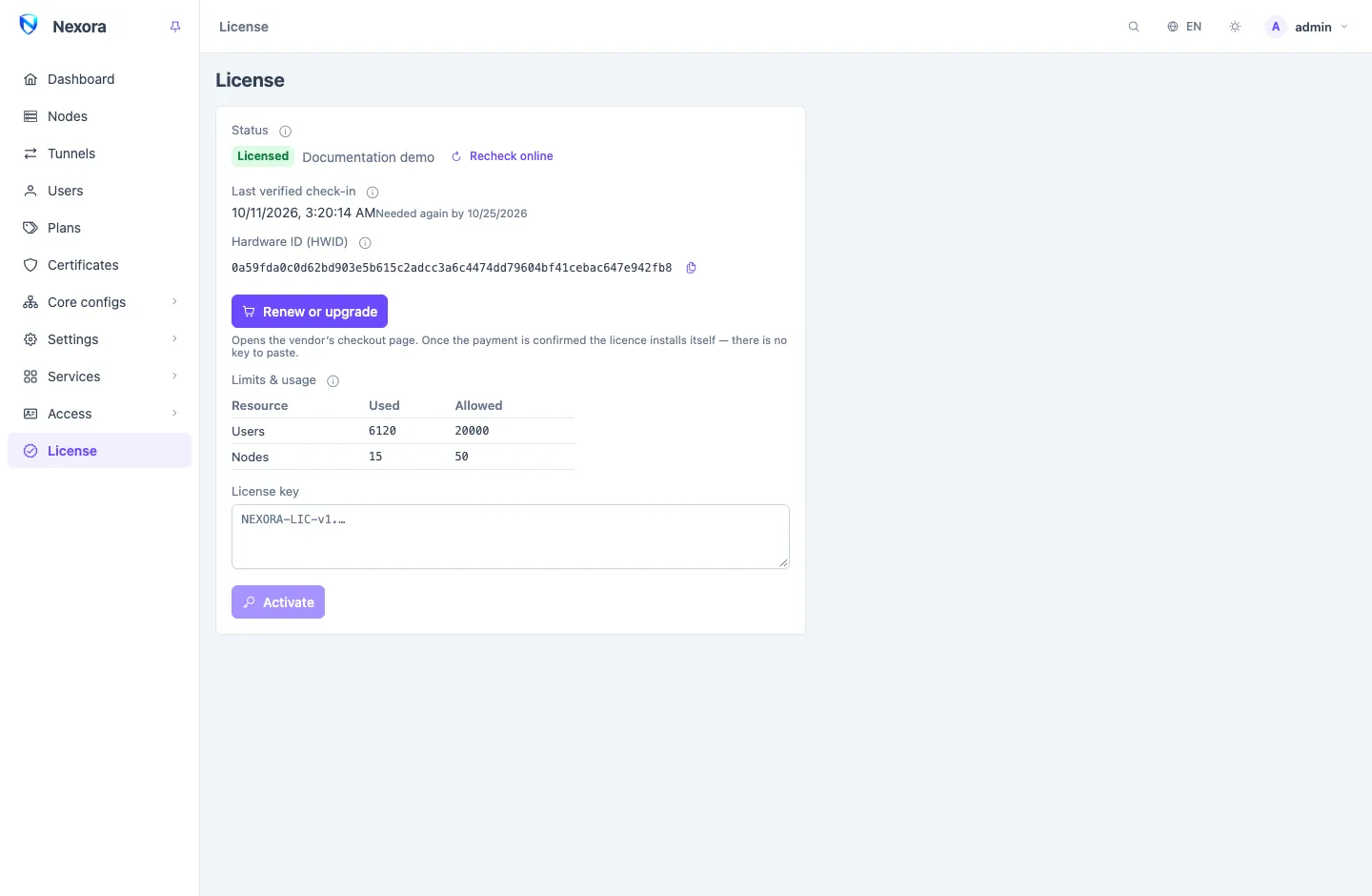
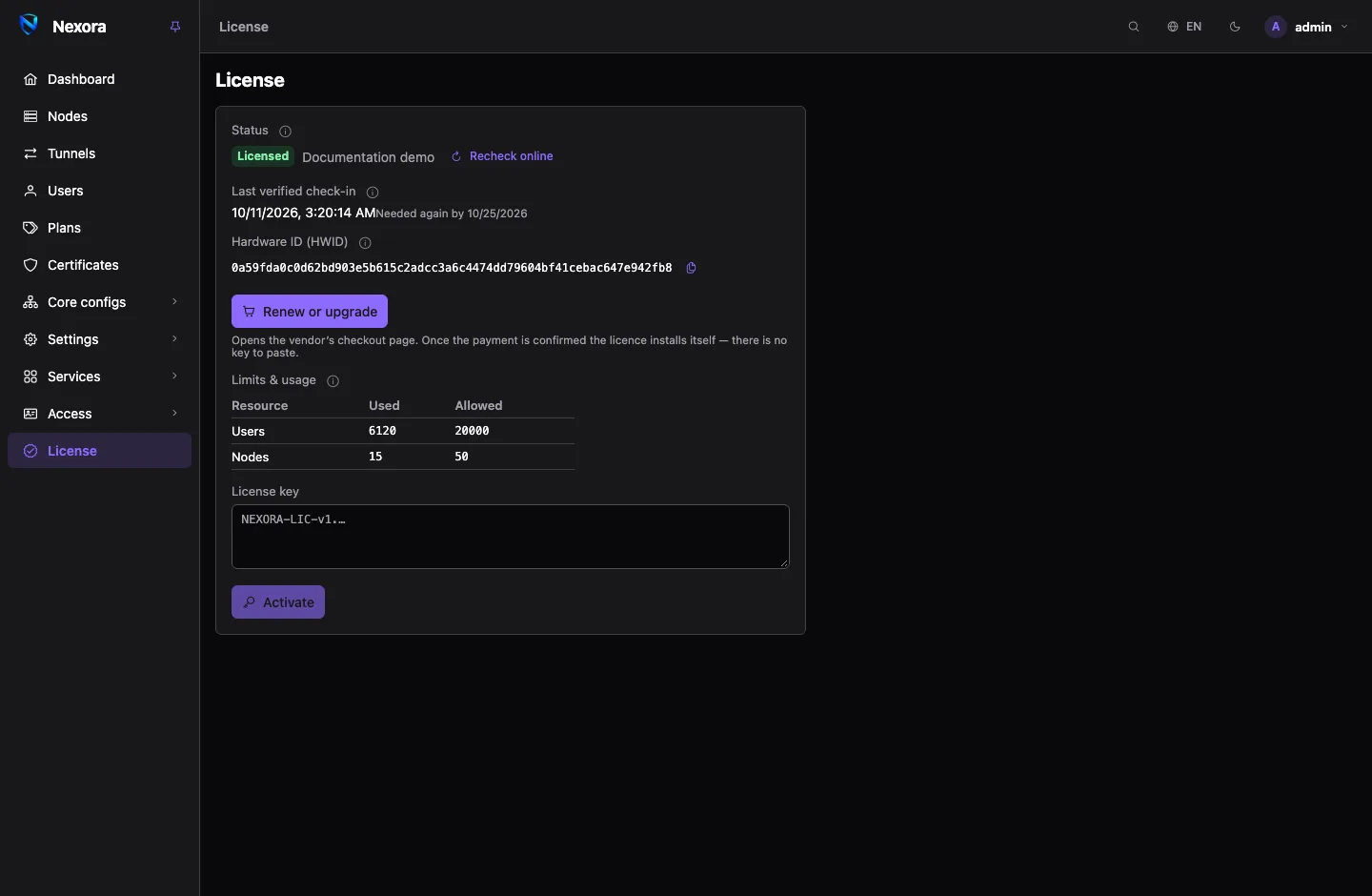
| Part | Shows |
|---|---|
| Status | Licensed, with the name it was issued to, or Free tier with the reason, such as No license installed or License expired |
| Recheck online | asks the licence service now and says what happened |
| Last verified check-in | when the licence service last answered |
| Buy a licence / Renew or upgrade / Move the licence to this machine | opens the checkout (below) |
| Limits & usage | for users and nodes: how many you have (Used) and how many the licence covers (Allowed). A count over the limit is shown in red. The expiry date is under the table. |
| License key and Activate | for a key you received by hand |
Buying a licence
- Open License and press Buy a licence. The vendor's checkout page opens in a new tab, in the panel's language.
- Choose a plan and pay with one of the methods the page offers. There is no account to create.
- Come back to the panel. It says Waiting for the payment — the licence installs itself once it is confirmed.
There is no key to paste. Once the payment is confirmed, the licence installs itself within a minute or two and the page says Licence installed. A payment by receipt waits until the vendor has approved it; the page says so, and you can close the tab meanwhile.
If the browser blocked the new tab, use the link the page shows instead (Open the checkout page). The checkout link works only for the panel that opened it.
A key the vendor sends you by hand still works: paste it into License key and press Activate.
Renewing and upgrading
On a licensed panel the button reads Renew or upgrade. The checkout page shows every plan this licence can move to, already priced:
- Renewing the same plan adds a period after the current expiry, so renewing early loses nothing.
- Upgrading to higher caps charges the difference for the days you have left, and keeps the expiry.
An expired licence renews the same way, and is back as soon as the payment is confirmed.
Moving to a new server
A licence is tied to the server it was installed on. To take it to a new server, use the Move action:
- Install the panel on the new server and restore your backup in the setup wizard (Moving from another server? Restore a backup). See Backup and restore. The new panel starts on the free tier.
- Open License and press Move the licence to this machine. Confirm the move on the checkout page. Moving is free.
Some moves go through at once. Others wait for the vendor to approve them, and the page says which; the licence installs itself once the move is approved. After a move the old server falls back to the free tier.
At the cap and at expiry
Past a cap, nothing is deleted:
- The rows beyond the cap are listed and marked Outside licence. The first users and nodes, by the order they were created, stay inside the licence.
- A row outside the licence is served on no node and cannot be edited. You can open it to view it and you can delete it.
- Delete rows to make room, or license more, and the marked rows are served again.
The same happens when a licence expires: the panel falls back to the free tier's 25 users and 1 node, and marks the rest. There is no grace period after the date. The panel warns before it:
- a banner on every page from seven days before the expiry;
- the
panel.license_expiringevent 30, 14, 7 and 1 days before, which you can send to Telegram, email or a webhook.
Creating a user or a node past the cap is refused with a message saying the licence limit was reached.
Staying in contact
The panel needs to reach license.nexora-panel.org over HTTPS. If it cannot for 14 days, it runs on the free tier until it can again, and a banner warns a week before that happens. If the server sits behind a firewall, allow outbound HTTPS to that address. Recheck online tries straight away.
Questions and refunds
There is no refund button in the panel or on the checkout page. The vendor's email address and phone number are at the bottom of every checkout page.
Related pages
- Users and Nodes: the rows a licence counts.
- Backup and restore: moving the whole panel to a new server.
- Dashboard: the License tile.