
Addons page
An Addon is a separate program that works beside the panel: a shop, a notifier, a bot of your own. It runs in its own container or service, with its own interface and database, and reaches the panel over the network. The panel never runs an addon's code and never shows its pages inside its own. What it keeps is what it needs to work with the addon: its address, a link to its interface, a health path, and the two things it may be given, an API token and a webhook. The page is under Services → Addons and is open to main admins.
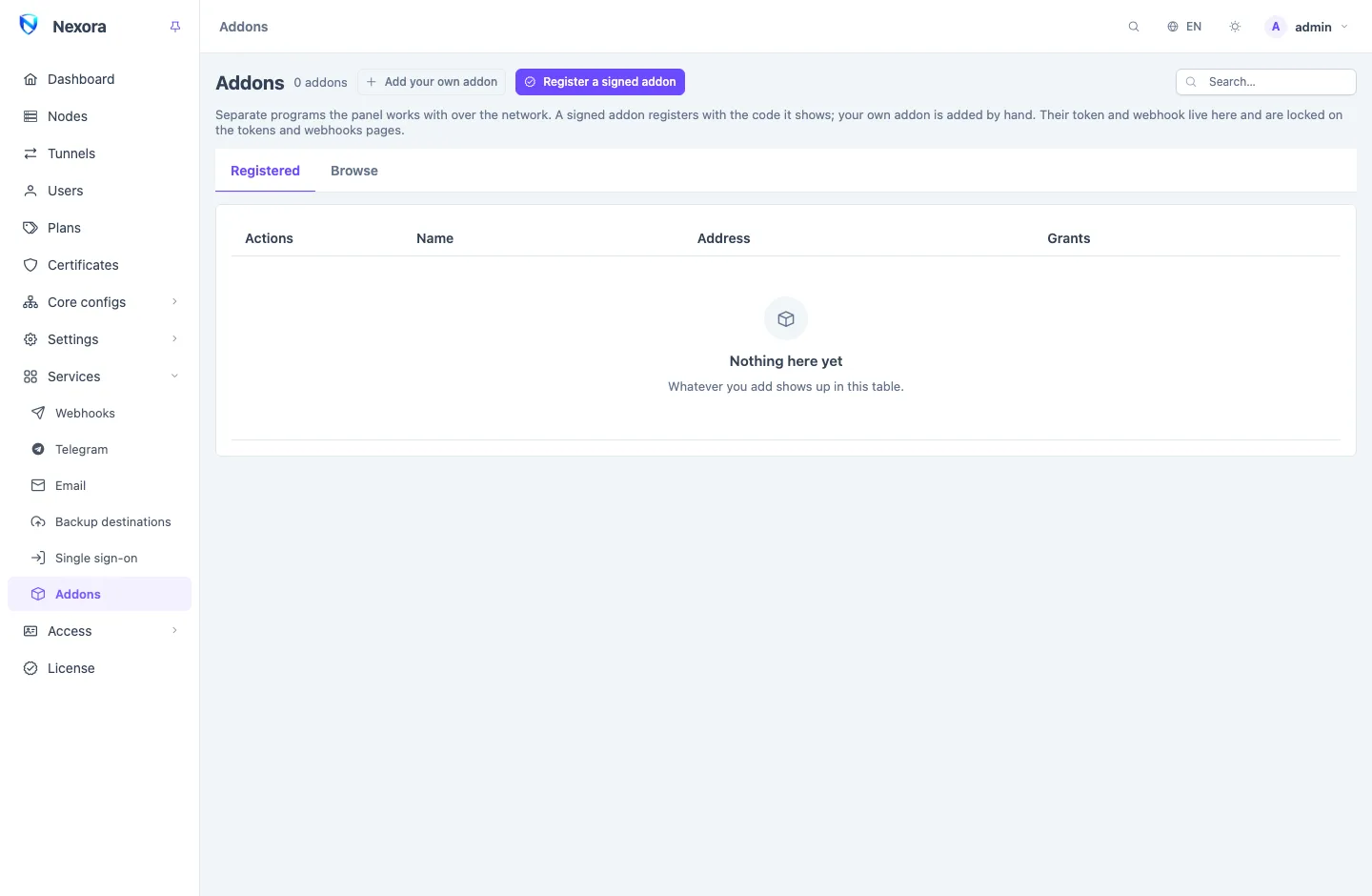
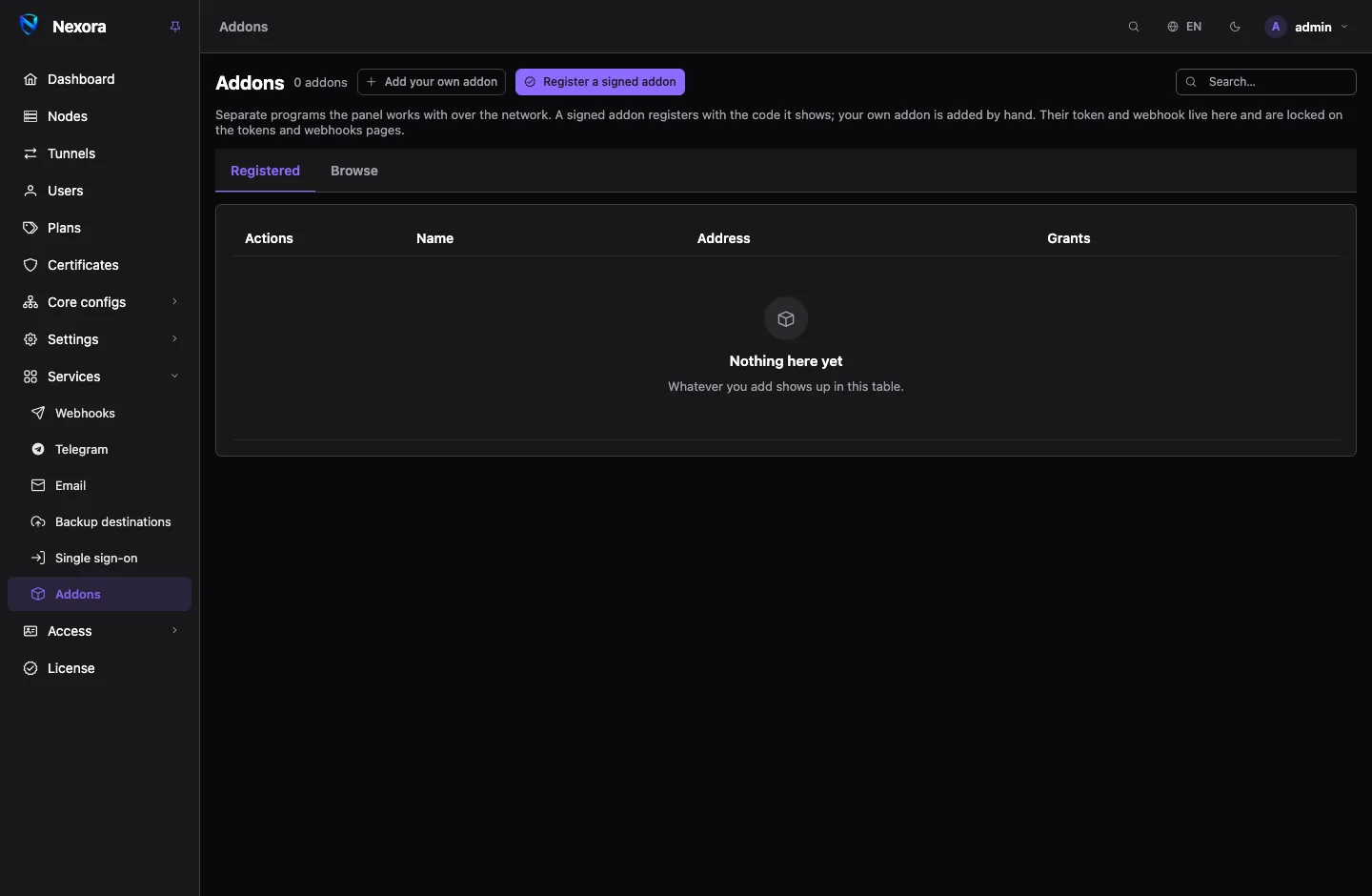
For what addons exist, see Addons. For a first install from start to finish, see Install an addon.
The two tabs
- Registered: the addons this panel works with, and any install still Waiting for an addon to answer.
- Browse: the addon directory at addons.nexora-panel.org, read once a day and when you press Read now. Each addon there is Official, Verified or Unofficial; what the tiers mean, and how to point the panel at a mirror with Change source, is on The addon directory.
The Addons menu gets a dot when the directory has a newer version of an addon you have.
Installing from the directory
On Browse, pick an addon and press Install. The form is built from the addon's own description and asks:
- Who runs it: I run the command, The panel, over SSH, or The panel, on this server (offered when the panel runs directly on a Linux server, not in Docker).
- How: As a service, With Docker, or Compose file.
- Where the panel will reach it and Where it reaches the panel.
- Its questions: a port, a password, the HTTPS answer, and whatever else the addon declares.
With I run the command, Make the command gives one command to run as root on the addon's server; a command carrying a secret you typed is shown only once. With SSH or on this server, Install runs it and shows the log live. Either way the panel then waits for the addon to answer at its address, shows what it asks for, and registers it when you press Approve and register. You can close the form meanwhile and come back with Continue. Install an addon walks through each choice.
Registering an addon that already runs
A signed addon, by claim code
An addon published through the directory carries a signed description of itself. To register one you started yourself:
- Start the addon. It shows a one-time Claim code in its log or on its own page.
- Register a signed addon, type the addon's Address, and Read.
- The panel reads the addon's description, checks its signature, and shows what it asks for: each permission of its token with the reason, the request rate it wants, and each event its webhook should hear. Read it. An Unofficial addon carries a warning that Nexora has not reviewed it.
- Type the claim code and Approve and register.
The panel creates exactly that token and webhook and hands them to the addon, which accepts them only with its code. A wrong code leaves nothing behind. Nothing is created before you approve.
The addon's token is bound to the panel owner and moves with the ownership if it is handed over (see Admins).
Your own addon, by hand
A bot or a script you run yourself is added with Add your own addon:
| Field | |
|---|---|
| Name | |
| Addon id | a short id (a-z, 0-9, _, -); taken from the name when empty, fixed once registered |
| Address | where the panel reaches it |
| Entry link | where its own interface is: a path under the address, or a full URL |
| Health | a path the panel can check; empty for no check |
| API token | switch on and choose its permissions |
| Webhook | switch on, give a path under the address or a full URL, and choose the events |
An addon needs a token, a webhook or both. Saving shows the token and the webhook's signing secret once: put them in your program's settings. The same form edits them later.
The address
Plain http:// is accepted only for an addon on this server, a private network or a Docker network. Anywhere else it must be https:// with a certificate the panel trusts, because the addon's token is sent there.
The registered list
Each row shows the addon's name and version, whether it is Signed (and by whom) or Your own, its state, its grants, and when its token was last used. The state is one of:
| State | Meaning |
|---|---|
| Registered | working normally |
| Suspended | stopped by you (below) |
| Unhealthy | its health path failed twice in a row |
The row menu holds what you can do with it:
- Open: the addon's own interface, in a new tab.
- Entry link (signed addons) or Edit (your own).
- Check for an update (signed addons).
- Review the update, when one is waiting.
- Certificate.
- Update on its host and Remove from its host, for an addon the panel installed over SSH or on this server.
- Suspend or Resume.
- Remove.
The entry link
The address you register is where the panel reaches the addon. With Docker that is often a container name your browser cannot open. Entry link sets the address your browser uses for Open; empty uses the one the addon declares, and a newer version of the addon keeps yours.
Health
When an addon has a health path, the panel asks it every minute; 200 is healthy. Two failed asks in a row mark it Unhealthy, with the last error on the page, and raise panel.addon_unhealthy once. The next 200 brings it back and raises panel.addon_recovered. An addon without a health path is never asked. Send those two events to Telegram or email to hear about it (see Telegram).
Suspending
Suspend stops an addon without removing it: its token stops working at once and its webhook stops receiving. Events raised while it is suspended are not kept for it. A suspended addon is not asked for its health. Resume switches both back.
Updates and approval
The panel reads a signed addon's description again every hour, and when you press Check for an update:
- A new version that asks for nothing more than the addon already holds is applied by itself.
- A new version that asks for more permissions, more events or a higher request rate waits. The addon keeps exactly what it has, the row shows Update waiting, and
panel.addon_update_waitingis raised once. Review the update lists only what it adds, each with its reason, for you to Approve. - An update that asks for a token or a webhook the addon never had cannot be approved in place: remove the addon and register it again.
Installing the new version itself happens where the addon runs: Update on its host for an addon the panel installed, or its install command run again on its server. Install an addon has the commands.
Certificates from the panel
An addon whose HTTPS answer is panel serves its public address with a certificate from the panel's own store, so it needs no certificate of its own and no port 443. The panel issues and renews it; the addon fetches it by itself. Certificate on the row picks or changes it. For an addon on another server only certificates issued by dns-01, self-signed ones and uploaded ones are offered, and never the panel's own HTTPS certificate. See Certificates for the store.
An addon that serves a self-signed certificate of its own shows its SHA-256 fingerprint on the consent screen; compare it with the one the addon's own set-up page shows before approving. When the addon renews it, its health fails because the panel no longer trusts it: open Certificate, compare What it serves now, and Trust this certificate.
Removing
Remove tells the addon first, with panel.addon_removed, then deletes its token and its webhook. What the addon stored in its own database stays, so registering it again finds it.
Remove from its host uninstalls an addon the panel installed: tick Delete its data too to remove its data directory as well, which cannot be undone. The addon stays registered until you also Remove it here.
On the other pages
An addon's token and webhook also appear on API tokens and Webhooks and events, marked Addon: name. They cannot be edited or deleted there, only here.
Related
- Install an addon: installing an addon step by step.
- The addon directory: the directory and its tiers.
- The addon platform: how registration and its checks work.
- Event catalogue: the
panel.addon_*events.