
Use the panel
This section covers each page of the Panel, in the order the sidebar shows them. Start here to learn the screen itself: where things are, how to reach them from the keyboard, and what every list page and dialog has in common.
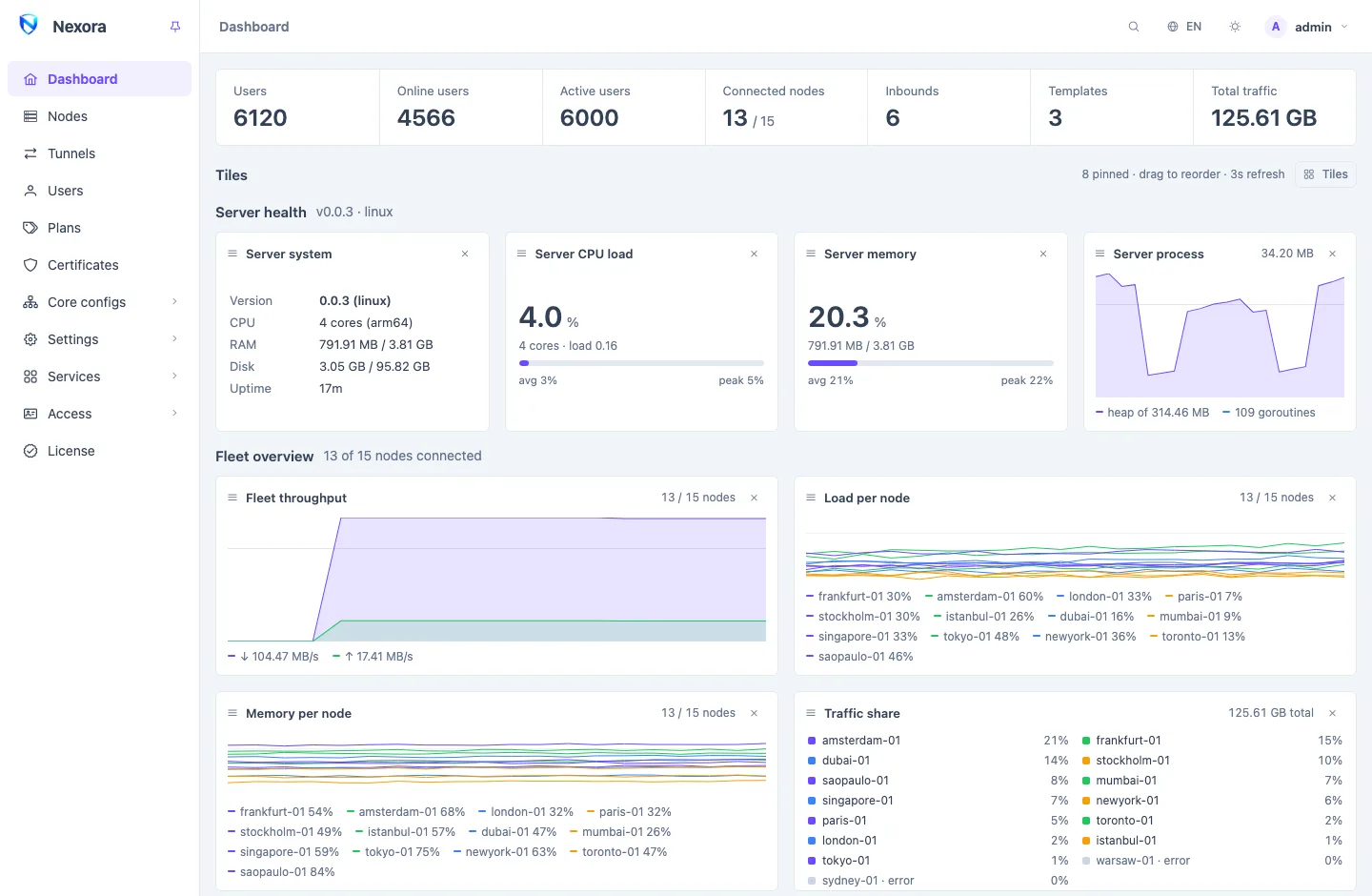
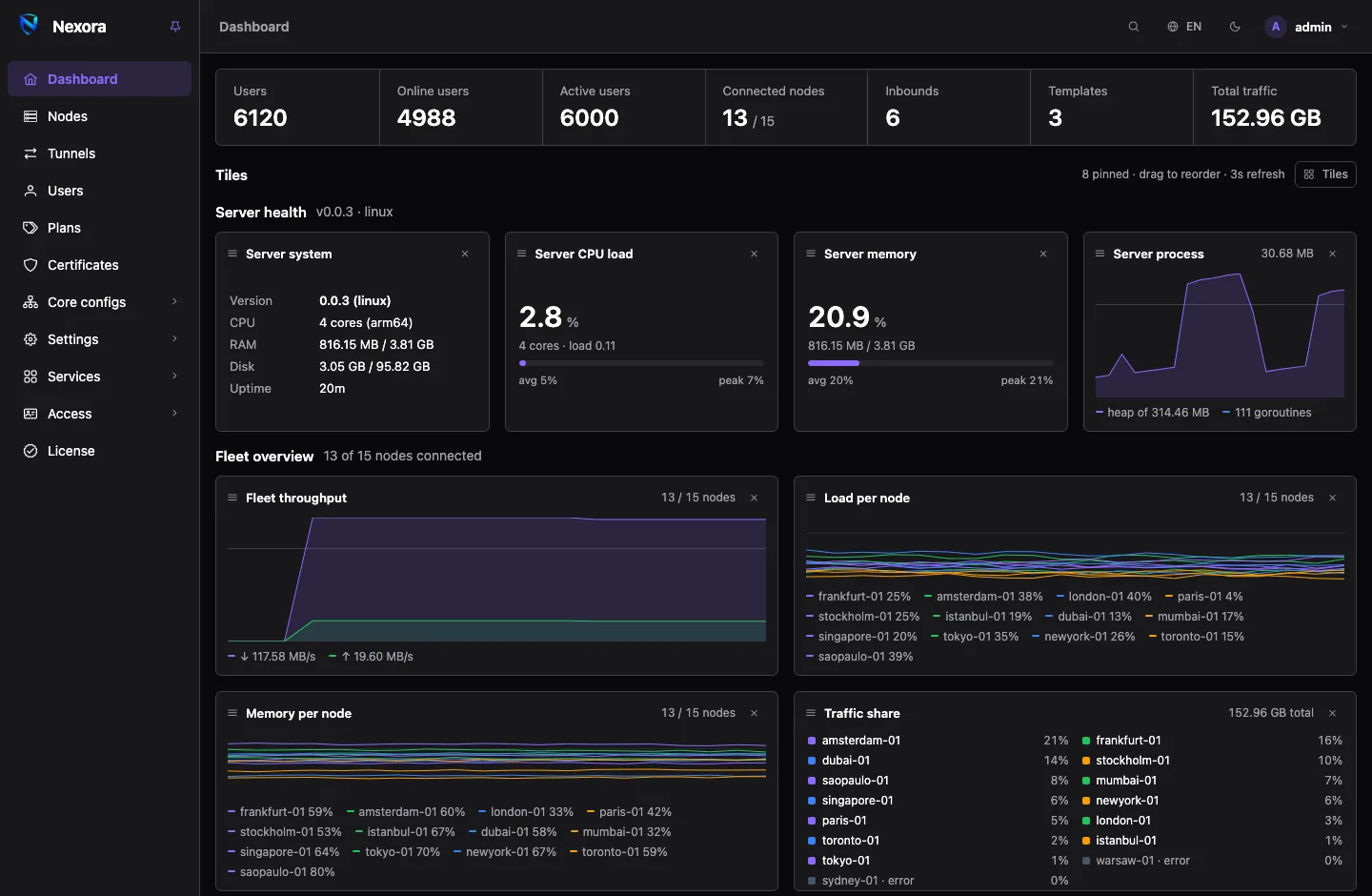
The screen
The panel has three parts:
- The sidebar on the left lists the pages your account may open.
- The header shows the current page's name, then the search button, the language button, the theme button and your account menu.
- The page fills the rest. Banners about the licence or a new release appear between the header and the page.
On a desktop the sidebar folds to a rail of icons and opens when you point at it. The pin beside the name (Keep the menu open) keeps it open. On a phone the sidebar is a drawer: open it with the menu button in the header.
The sidebar
The sidebar shows only what your role allows. A group with no page left for you disappears. The main admin sees this menu:
| Entry | What is there |
|---|---|
| Dashboard | The summary of the panel, the fleet and your users |
| Nodes | The servers that carry traffic |
| Tunnels | Links between two groups of your nodes |
| Users | Your customers' accounts |
| Plans | Presets a new user is created from |
| Certificates | TLS certificates for inbounds and for the panel itself |
| Core configs | Templates, Inbounds, Outbounds, Endpoints, Rule sets, Domain fronting |
| Settings | General, Subscriptions, Backup, Security, Panel update, Audit log |
| Services | Webhooks, Telegram, Email, Backup destinations, Single sign-on, Addons |
| Access | Admins, Roles, API tokens |
| License | The licence and what it allows |
An admin on the built-in operator role sees the same menu without Services, Access, License and the main-admin pages under Settings (Backup, Security, Panel update, Audit log). A custom role can remove more. A Reseller sees only Dashboard and Users. See Roles for what each permission opens.
A dot beside Addons (and on Services while that group is folded) means the addon directory lists a newer version of an addon you run.
The account menu
Your name at the right of the header opens your own account's settings:
- Change password
- Two-factor authentication: a code from an authenticator app at every login. See Admins.
- Sessions: every browser signed in to your account, with a way to end them.
- My Telegram, My email, Single sign-on: notices and sign-in for your own account, when the main admin has switched these services on. See Telegram, Email and Single sign-on.
- Logout
The command palette
Press Ctrl+K (Cmd+K on a Mac), or / when you are not typing in a field, or click the search button in the header. Then type:
- Pages: any page in your sidebar, by its name.
- Actions: create a record, such as New user, New node or New inbound. The palette opens that page with its create dialog already open.
- Users: accounts, by name, group or subscription ID. Choosing one opens the users page filtered to that account, where you use the row's own actions.
Use the arrow keys to move and Enter to open. Escape closes the palette.
Theme, colour and density
The theme button in the header sets how the panel looks:
| Setting | Choices |
|---|---|
| Mode | System (follows your device), Light, Dark, High contrast |
| Colour | Violet, Ocean, Forest, Sunset, Rose |
| Compact density | smaller text and tighter rows, to fit more on screen |
These choices are kept in your browser, so each computer can have its own. Dashboard tiles are different: they follow your account (see Dashboard).
Languages
The language button switches the panel between English, Persian (فارسی), Chinese (中文) and Russian (Русский). Persian turns the whole layout right to left. The choice is kept in your browser.
Dates and times are shown in the panel's own time zone, which the main admin sets under Settings → General (see General settings), whatever the time zone of your computer.
How list pages work
Most pages are a list of records, and they all work the same way:
- The summary strip at the top counts the records by state, for example connected and failing nodes. Click a counter to show only those rows; click it again to clear it.
- The header row has Add and a search box. The users page also has Filters and a sort menu (see Users).
- The first column holds each row's actions: a few buttons, and ⋮ for the rest. On a phone the buttons fold into the ⋮ menu, and the columns that do not fit fold into an ⓘ button on each row.
- Tick rows with the checkboxes to act on several at once. A bulk-actions button appears beside Add once something is ticked. The panel works through the selection and reports which rows failed and why.
- Delete and other destructive actions ask first.
A row the licence does not cover is dimmed and marked Outside licence. You can open it to view it and you can delete it, but you cannot change it. See Licence.
How dialogs behave
Creating or editing a record opens a dialog over the page. Nothing is saved until you press Save. An error from the panel appears as a message in the corner of the screen and the dialog stays open, so you can correct the field and try again.
Some actions are sensitive: managing admins and API tokens, installing a licence, restoring a backup, restarting the panel, and changing the panel's address settings. If your account uses two-factor authentication, the panel asks for a fresh code before such an action, at most once every ten minutes.
Drawers slide in from the side for things you look at while the page stays in view, such as the users filter or a node's logs.
Where to go next
The pages of this section follow the panel's menu:
| Group | Pages |
|---|---|
| Fleet | Dashboard · Nodes · Tunnels |
| Customers | Users · Groups and bulk operations · Plans · Resellers |
| Core configs | Templates · Inbounds · Outbounds · Endpoints · Rule sets · Routing and DNS · Domain fronting |
| Settings | Certificates · General settings · Subscriptions and the subscription page · Backup and restore · Security · Updating from the panel |
| Access | Admins · Roles · API tokens · Audit log · Licence |
| Services | Webhooks and events · Telegram · Email · Backup destinations · Single sign-on · Addons page |
If the panel is new, Get started walks through the first inbound, node and user in order.