
Users
A User is one of your customers: an account with credentials, a traffic allowance, an expiry and optional limits. This page lists the accounts you can see, creates new ones, and hands out each one's subscription link. Bulk work on many accounts at once is on Groups and bulk operations.
The list
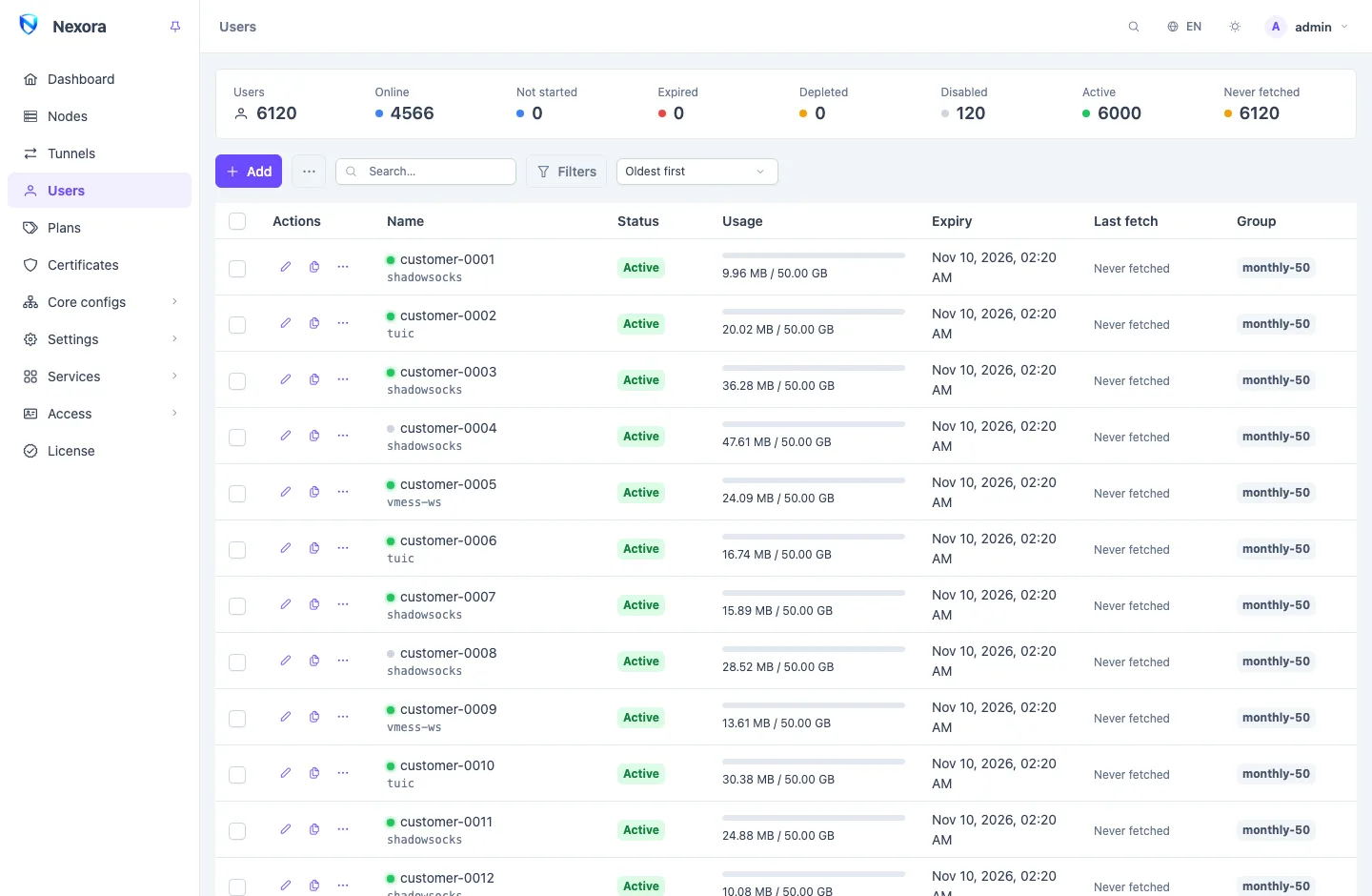
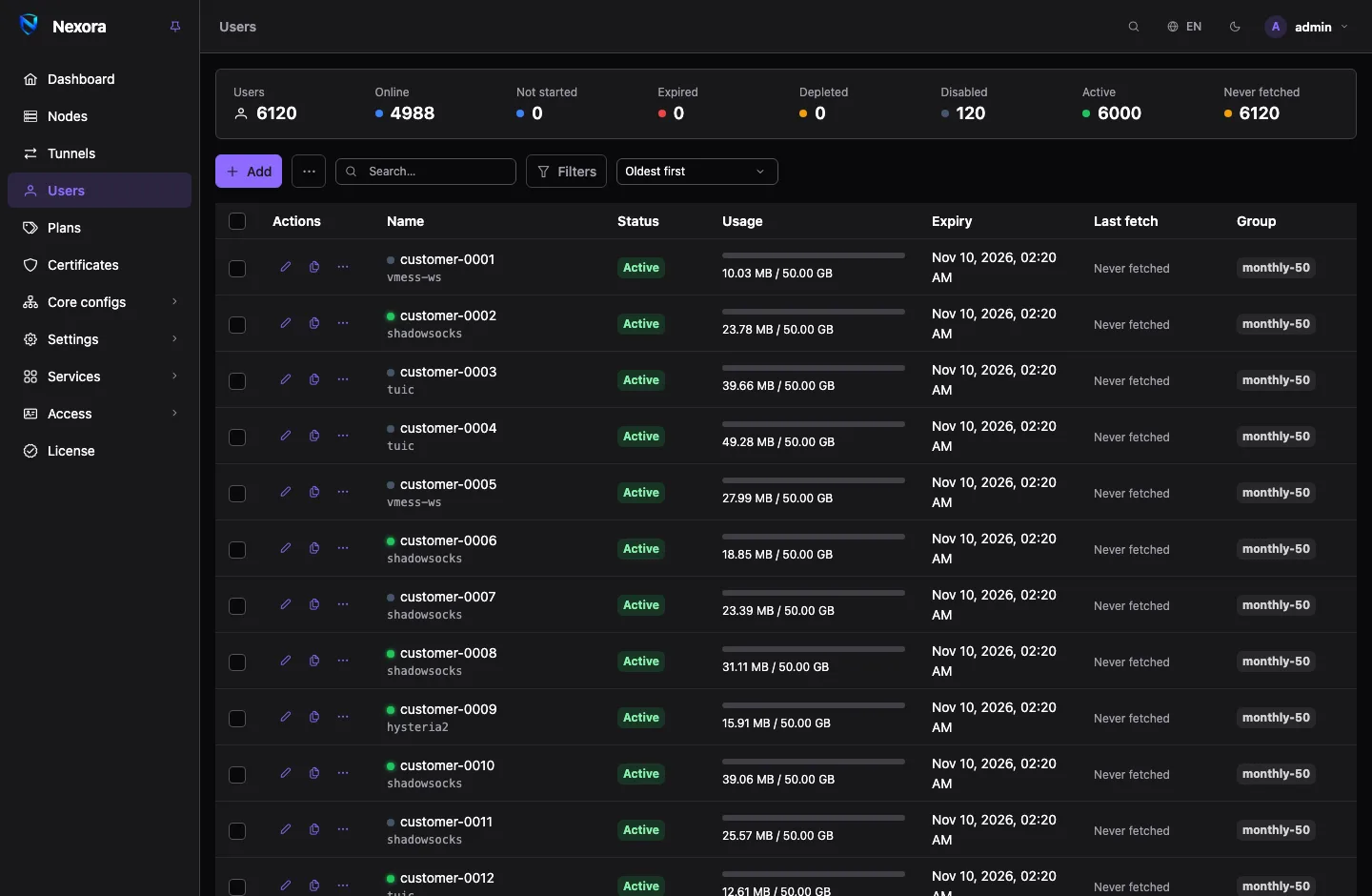
Each row shows the account's Name (with a green dot when it is online and the inbound it last connected through), its Status, its Usage against its volume, its Expiry, when a client last fetched its subscription (Last fetch), and its Group.
| Status | Meaning |
|---|---|
| Active | switched on, within its limits |
| Not started | its plan starts on the first connection, and it has not connected yet |
| Expired | its expiry date has passed |
| Depleted | it has used its whole volume |
| Disabled | switched off |
Last fetch reading Never fetched on an active account usually means the customer never imported the link. It is worth a message before it becomes a support ticket.
The summary strip
The counters above the list are Users, Online, Not started, Expired, Depleted, Disabled, Active and Never fetched. Click one to show only those accounts.
Search, filters and sort
The search box matches part of the name, group, description, remark or subscription ID, and part of the standard contact details (Telegram, email, phone and the other standard fields). Typing a customer's phone number finds their account.
Filters opens a side panel:
- Status, and Online for accounts with traffic in the last 90 seconds.
- Protocol, Inbound, Node and Template: accounts that reach them.
- Group, and Owner (main admin only) for a reseller's accounts.
- Expiry between two dates, or Never expires.
- Traffic used (GB) from and to.
- Auto reset on or off, and Subscription fetched yes or no.
- Customer details: an exact Telegram id, email or phone.
The number on the Filters button counts the filters in use. Clear all removes them.
The sort menu beside it orders the list: Oldest first, Newest first, Recently updated, Recently online, Name A→Z, Name Z→A, Most traffic, Most remaining, Expiring soonest and Recently fetched.
The list refreshes by itself. It pauses while you have rows ticked or a dialog open.
Creating a user
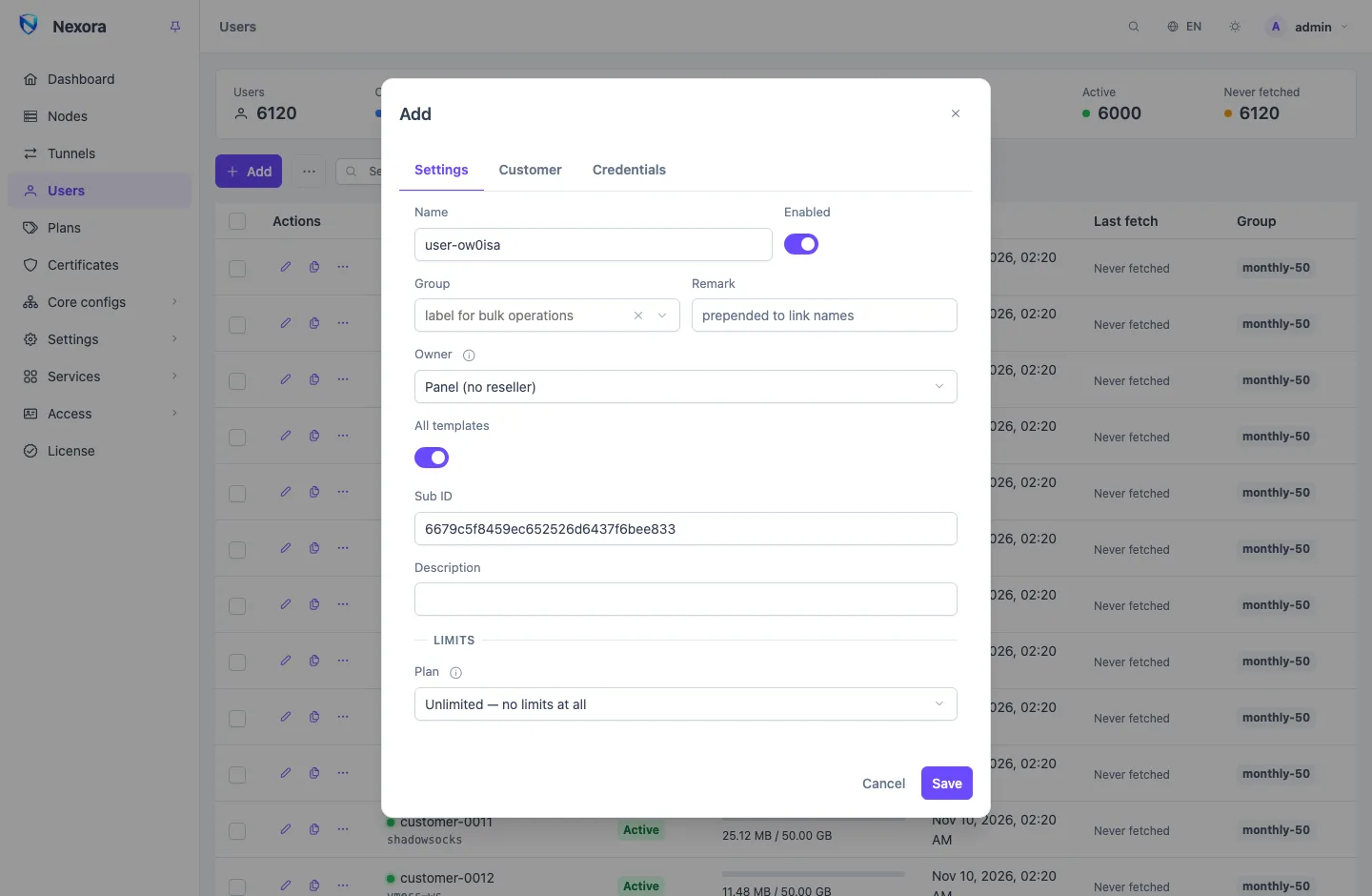
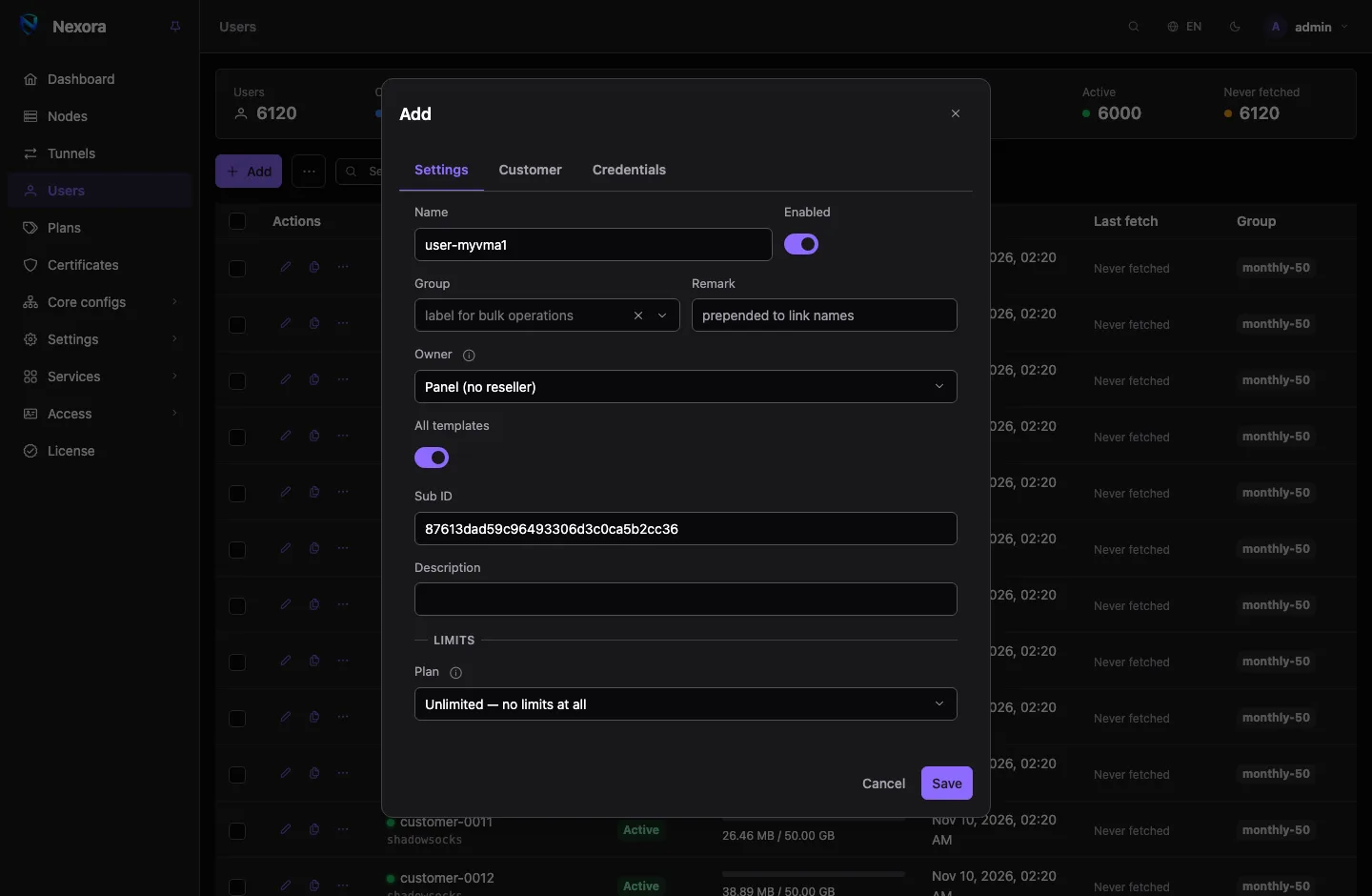
Press Add. The form has three tabs: Settings, Customer and Credentials.
Settings
| Field | |
|---|---|
| Name | the account's name, shown in the panel and in the customer's app |
| Enabled | on for a working account |
| Group | a free label for finding and acting on accounts together. See Groups and bulk operations. |
| Remark | put in front of the name of every entry in the customer's app |
| Owner | main admin only: the Reseller this account belongs to, or Panel (no reseller) |
| All templates, Templates | which templates, and so which nodes, the account is served on (below) |
| Sub ID | the identifier in the account's subscription link. Leave it as generated. |
| Description | a note for you |
Limits
Plan decides where the limits come from:
- Unlimited — no limits at all.
- Set limits by hand opens the fields below.
- A plan copies that plan's limits onto the account once. See Plans.
| Limit | |
|---|---|
| Volume | traffic allowance in GB. 0 is unlimited. |
| Expiry | the date the account stops. Empty never expires. |
| Start on first connection | count the account's length from its first connection instead of a date (below) |
| Speed limit | Mbps in each direction. 0 is unlimited. It applies on each node separately. |
| Address limit | how many source addresses may be connected at once across all nodes. 0 is unlimited. |
| Device limit | how many devices may hold the subscription. 0 is unlimited. See below. |
| Auto reset | reset the used traffic on a cycle (below) |
Starting on the first connection
Turn on Start on first connection and give a Plan length (days) instead of a date. The account shows Not started and does not expire until it first passes traffic. From then it lasts the number of days you gave, and the form shows when it Started.
This suits accounts you sell in advance: a customer who sets up their app a week later still gets the whole period. Changing the length later starts the period again from the next connection.
Reset cycles
With Auto reset on, the account's used traffic goes back to zero on a cycle, so a monthly volume is a monthly volume. Reset cycle has four shapes:
| Cycle | Resets |
|---|---|
| Every N days | every Reset every (days) days, counted from the last reset |
| Weekly | on the weekday you pick (Resets on) |
| Monthly | on a Day of the month |
| Yearly | on a Month and day |
Monthly and Yearly follow a Calendar: Gregorian or Persian. A day that a month does not have falls on that month's last day (the 31st is the 28th in February) and returns to the chosen day the month after. The form shows the Next reset date.
A reset clears the used traffic only. The lifetime totals stay.
Templates
A user is served only on the nodes whose Template they belong to.
- All templates puts the account on every node, now and as you add templates. This is the default for a new user.
- With it off, pick one or several Templates. An account on none reaches no node.
Customer details
The Customer tab keeps what you know about the person, as field and value pairs. Six fields are standard: Telegram, Email, Phone, Bale, Soroush Plus and Rubika. Only these are searched, filtered, exported and filled in by an import. Add any other field with Add a field; it is stored with the account and nothing reads it.
A Telegram, Bale or Soroush id is the numeric chat id or an @username. The notifier addon fills them in when a customer links its bot (see The notifier).
Credentials
The Credentials tab holds the account's UUID, Password, Shadowsocks keys and the VLESS Flow. They are generated for you, shared by every protocol, and there is rarely a reason to touch them. Regenerating one changes the account's links, so the customer has to fetch the subscription again.
The subscription link and QR codes
Subscription on a row copies the account's subscription link. That one link is what you give the customer: their app fetches its whole configuration from it and keeps it up to date. Opened in a browser, it shows the subscription page with usage, expiry and setup help.
QR / Links on the row's menu has three tabs:
- Subscriptions: the link in each format (automatic, Clash, a sing-box profile, an Xray JSON profile, plain text), each with a QR code to scan.
- Links: every single configuration as its own share link and QR code.
- Client apps: files for dedicated apps, such as a WireGuard
.confor an OpenVPN.ovpn. A file too large for a QR code can be copied or saved.
Subscriptions and the subscription page covers the page's look and the subscription domains, and From a template to a link how the link is built.
Devices and addresses
Devices & addresses on the row's menu shows, refreshed every ten seconds:
- Devices that have taken the subscription. Apps that send a device id when they fetch (Happ and v2RayTun by default; Shadowrocket, Karing and Throne once switched on) are listed and counted against the Device limit. A device past the limit is refused the configuration. One that already has it keeps working until you Forget it, which frees its place.
- Active addresses: where the account connected from in the last ten minutes, across every node.
- The number of open sessions, with a way into Live connections.
Apps that send no device id are not listed and, unless you turn on the strict setting in Subscriptions and the subscription page, not limited either.
Live connections
Live connections on the row's menu shows the account's open connections right now: pick a node, then filter by inbound or outbound. Each row shows where it comes from, where it goes, the rule that routed it, how long it has been open and its traffic.
Disconnect all on {node} closes the account's connections on that node, and the other button closes them on every node. Closing is not a ban: the app reconnects on its next packet unless the account is disabled.
The row's menu also has Usage graph (traffic over time), Usage by node (which nodes the traffic went through) and Route test (which routing rule a connection would match; see Routing and DNS).
Renewing an account
To renew, edit the account and move its Expiry or raise its Volume, or use Extend and gift to add days or traffic to one or many accounts (see Groups and bulk operations). An account the panel switched off for its date or its volume comes back on by itself within a minute once it is within its limits again.
Programs such as Nexora Shop renew accounts through the panel's API (see API reference).
Disabling and enabling
Turn Enabled off in the form, or use Disable on a selection, to switch an account off. Who switched it off matters:
- You switched it off. It stays off, even if it is within its limits, until a person switches it on.
- The panel switched it off because it expired, ran out of volume, or its reseller ran out of allowance. It comes back on by itself once it is within its limits again, for example after a renewal.
Enable on a selection leaves off any account that is past its expiry or over its volume, and says how many; renew those first.
Users beyond the licence
The free tier serves 25 users. Accounts beyond what the licence allows are marked Outside licence: they are listed and can be deleted, but are served on no node and cannot be changed. A notice above the list counts them. See Licence.
Related pages
- Groups and bulk operations: groups, bulk changes, batch creation and exports.
- Plans: presets for new accounts.
- Resellers: accounts that belong to a reseller.
- Traffic, quotas and limits: how traffic is counted, reset and charged.