
Install an addon
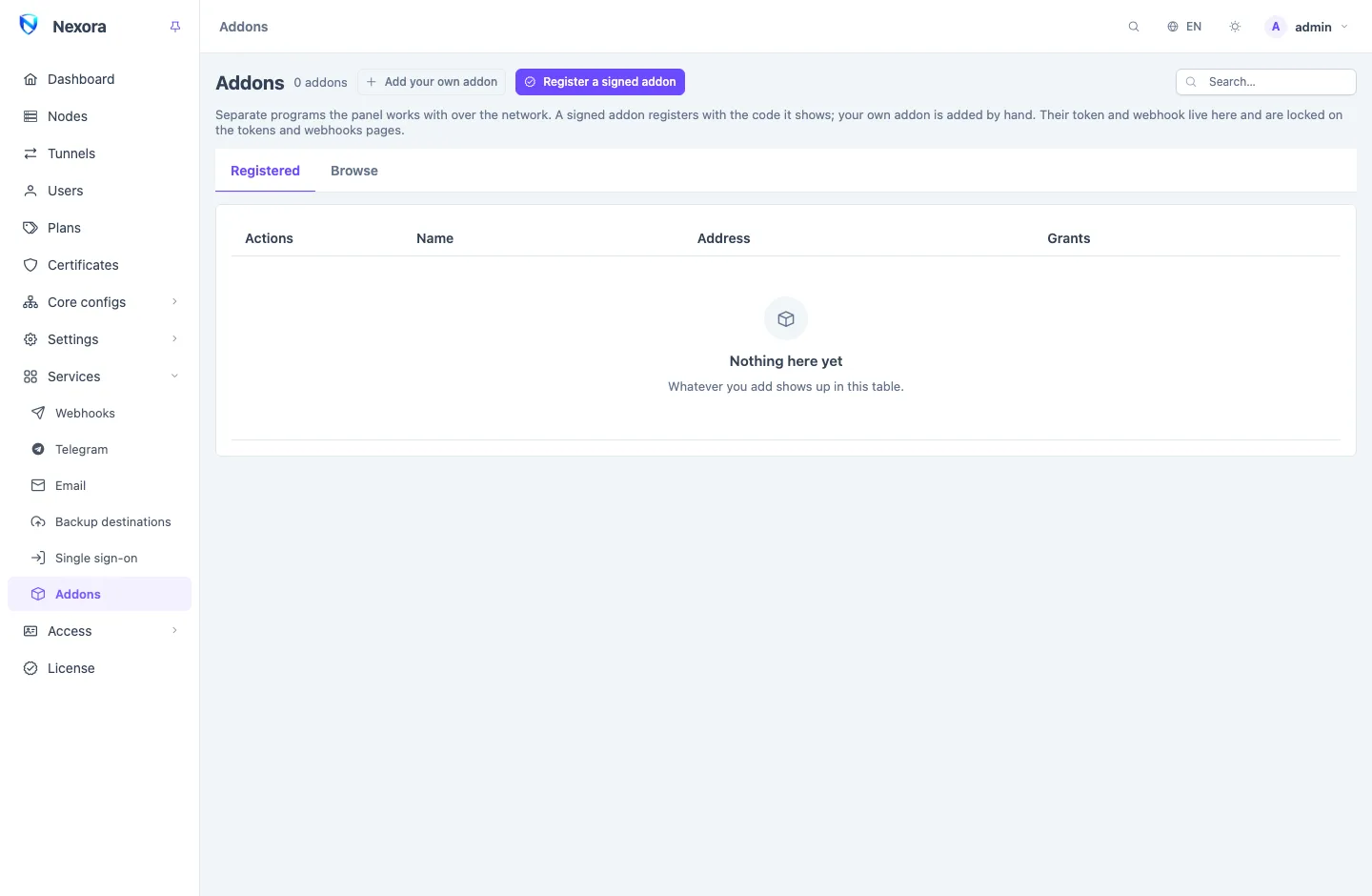
An Addon is a separate program that works beside the panel, such as a shop or a notification bot. The panel finds addons in the directory at addons.nexora-panel.org, installs them, and registers them once you have approved what they ask for. This page is the short path; Addons page and The addon directory have the detail.
1. Pick an addon
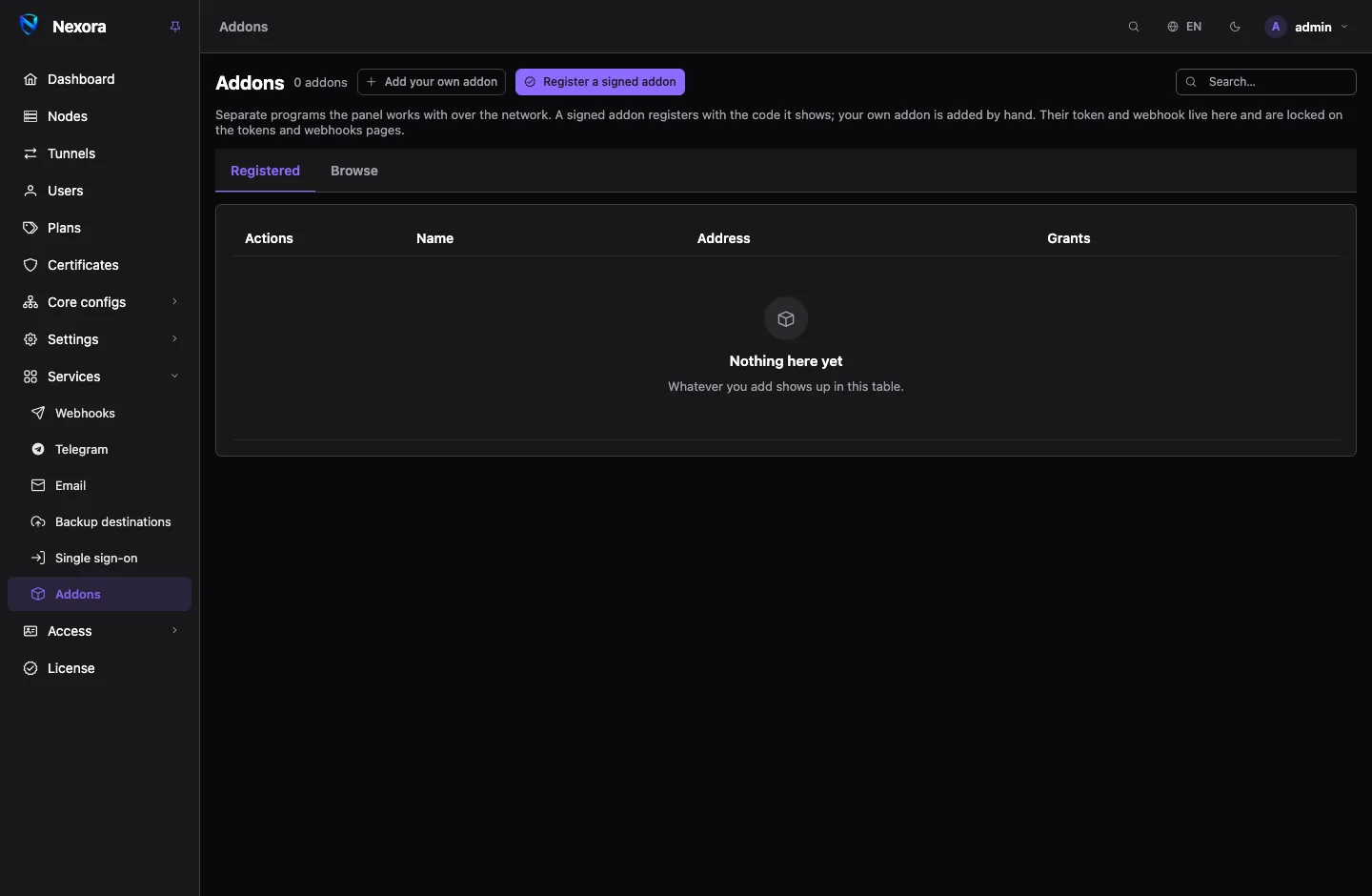
Open Services → Addons and the Browse tab. Each card shows the addon's tier:
| Tier | Meaning | Installed |
|---|---|---|
| Official | made by Nexora | by the panel or by a command |
| Verified | from another developer, reviewed by Nexora | by the panel or by a command |
| Unofficial | listed after a light check only | by a command only, with a warning |
If the list is empty, press Read now. Press Install on the addon you want.
2. Choose who runs it
Who runs it offers up to three answers:
- The panel, on this server. The panel installs the addon beside itself, with nothing to type. Offered when the panel runs directly on Linux, not in Docker.
- The panel, over SSH. Give a Host, SSH port, User (root or a user with sudo) and a Password or Private key. They are used for this connection only. With Release files set to The panel brings them, the server needs no access to GitHub.
- I run the command. The panel gives you one command to run as root on the addon's server.
Tick Authorise the panel's key on this host so that updating and removing the addon later need no password.
3. Answer its questions
The form is built from what the addon declares:
- How: As a service, With Docker or Compose file.
- Where the panel will reach it: the addon's address as the panel sees it.
- Where it reaches the panel: the panel's address as the addon's server sees it.
- Its questions: a port, an admin password, a token, whatever this addon needs.
An addon that offers it can take its HTTPS certificate from the panel's certificate store, so it needs no port 443 of its own. See Addons page.
4. Install and approve
- Over SSH or on this server, press Install and watch the log.
- By command, press Make the command and run it on the addon's server. It carries a one-time claim code. If an answer is a secret, the command is shown only once, so copy it before you close the form.
The panel waits for the addon to answer, then shows what it asks for: each permission with its reason, and each event it wants to hear. Press Approve and register. You can close the form while it waits; the install stays under Waiting for an addon to answer with Continue, for a week.
The registered addon appears on the Registered tab with a link to open it.
Next
- Addons page: updating, suspending and removing an addon.
- Addons: what each official addon does, such as Nexora Shop and The notifier.