
Email
The email service sends the panel's notices by mail: the same notices the Telegram service sends, to addresses confirmed for panel accounts. An address hears only what its account may see, so a reseller's address hears about its own customers and nothing else. The service is under Services → Email and is set up by a main admin.
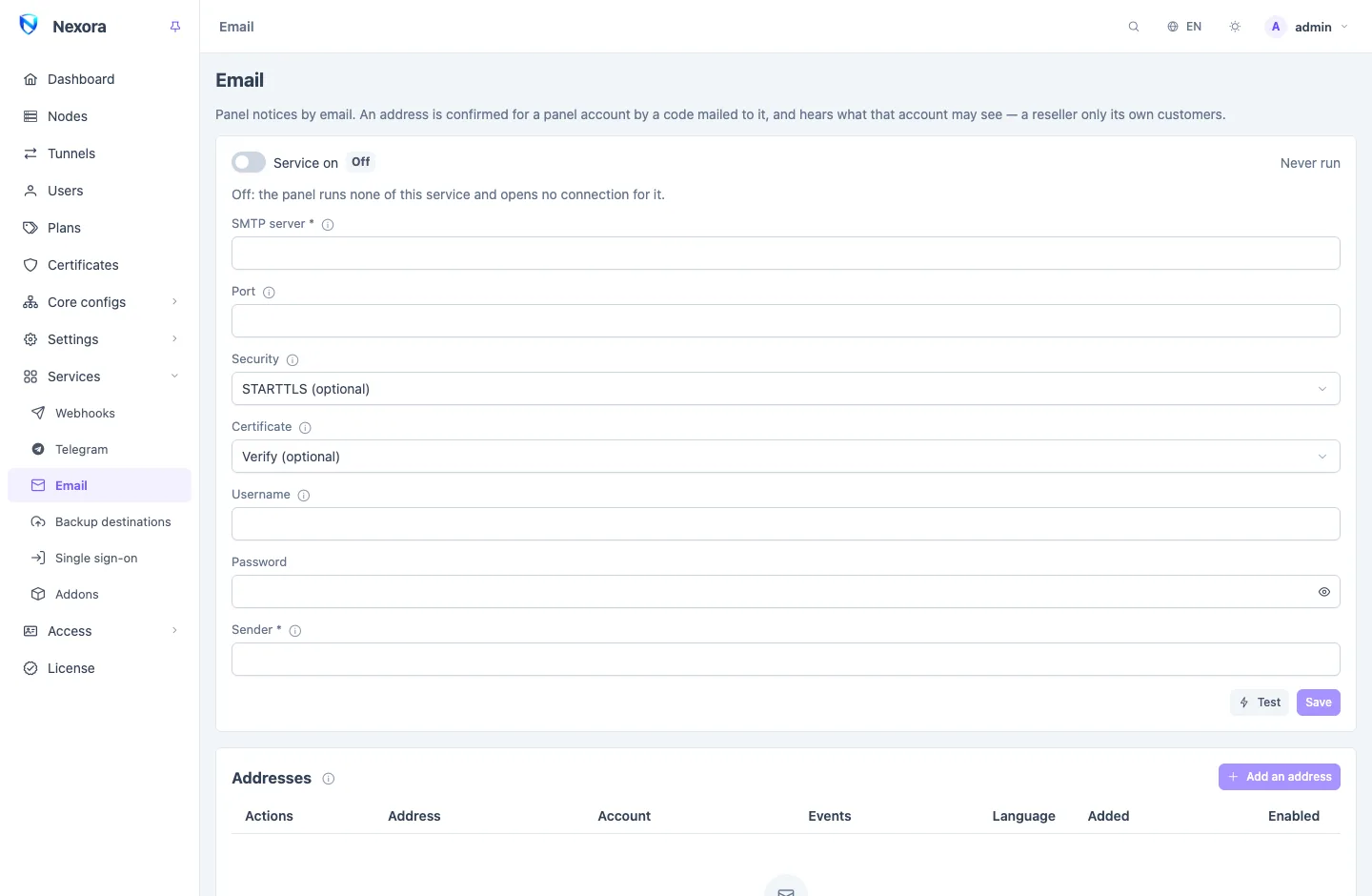
Connecting a mail server
| Setting | |
|---|---|
| SMTP server | the mail server's name, such as smtp.example.com; no scheme, no port |
| Port | empty = 587 for STARTTLS, 465 for TLS, 25 for none |
| Security | how the connection is protected (below) |
| Certificate | Verify, or Do not verify (self-signed) |
| Username, Password | the login; an empty username sends without logging in |
| Sender | the address mail comes from, optionally with a name: Nexora <panel@example.com> |
Switch Service on, save, and press Test. The test uses what is saved, so save first. The password is never shown again once saved: an empty box keeps the stored one.
Security modes
| Mode | Use it for |
|---|---|
| STARTTLS | a server that upgrades a plain connection to an encrypted one, usually on port 587 |
| TLS | a server that is encrypted from the first byte, usually on port 465 |
| None — no encryption | only a relay on this server or a private network: everything, the login included, is sent in the clear |
Choose Do not verify (self-signed) only for your own mail server with a self-signed certificate. The connection is still encrypted, but anyone in the path could pose as the server and read the password.
Most servers send only from an address you own, so set Sender to one of yours.
Gmail and other large providers
They refuse your ordinary password over SMTP, with an answer such as 534 Application-specific password required. Turn on two-step verification for the mailbox and use an app password from the provider instead.
Adding an address
- Add an address. It is available once the SMTP server and the sender are saved.
- Type the Address and choose the Account it belongs to.
- Choose the Language of its notices.
- Choose its Events: Everything this account may read (which includes events a later release adds), or untick it and pick. An event the account cannot see is greyed out.
- Send code. A six-digit code is mailed to the address.
- Type the code and Confirm.
The code is good for ten minutes and five tries; Send again mails a new one. Nothing is ever sent to an address that has not been confirmed, so a typo cannot send your customers' names to a stranger.
Every account can add its own address from its menu, My email, with the same steps. A reseller does not need the main admin for it.
What arrives
Each notice is one mail in the address's language: what happened, then the fields that matter to a person. Any event in Event catalogue can be chosen; the Telegram section lists the ones operators usually keep. A reseller's address receives only events about its own users and its own account.
The address list
Each row shows the Address, its Account, its Events, its Language and when it was Added, with a switch to pause it. From the row menu:
- Edit: change the events or the language.
- Send test mail.
- Deliveries: every notice mailed to it, with the server's reply, and Send again on any of them.
- Remove: the address stops receiving notices; adding it again needs a new code.
An address is retried the way a webhook is (see Webhooks and events), so notices sent while the mail server was down arrive when it is back. While the service is off, addresses receive nothing.
Deleting an account removes its addresses, and so does a main admin resetting its password on the Admins page.
Related
- Telegram: the same notices in Telegram.
- Webhooks and events: the thresholds behind the warnings.
- Event catalogue: every event.